
How to export your data from KeePass
Sticky Password can import your data from KeePass-compatible apps using CSV only. Use the official documentation linked below to export to CSV in the app you use, then import that file into Sticky Password on your device.
Exporting passwords from KeePass
A CSV export is not encrypted as a standalone file, so anyone who can open it can read the logins and other fields it contains. Export only on a device you trust, import into Sticky Password as soon as you can, and delete the export file (and any copies) once the import has finished.
Which format should I use? Sticky Password supports CSV only for importing from KeePass-compatible apps, so choose CSV in your app's export dialog. The guides below explain how that export works in each product and what the file can contain; menu names and available options can differ by app and version.
What to expect: In KeePass's own model, a standard CSV export covers a limited set of fields (such as title, username, password, URL, and notes). Custom fields, attachments, and other metadata are not carried in CSV, so they will not appear in Sticky Password after import unless you add them again yourself.
KeePass (Windows and related builds)
Export to CSV from the KeePass desktop application. Use the steps below, then see the official KeePass documentation linked under the list for format details and other export options.
Open the KeePass application.

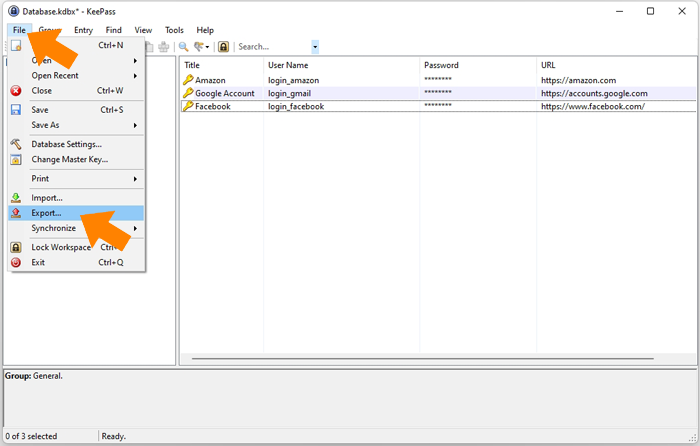
Go to File → Export.
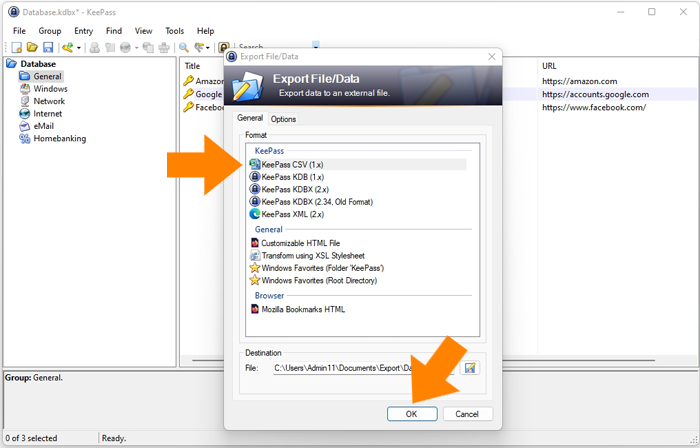
Select KeePass CSV (1.x), choose the destination folder on your computer, and click OK.
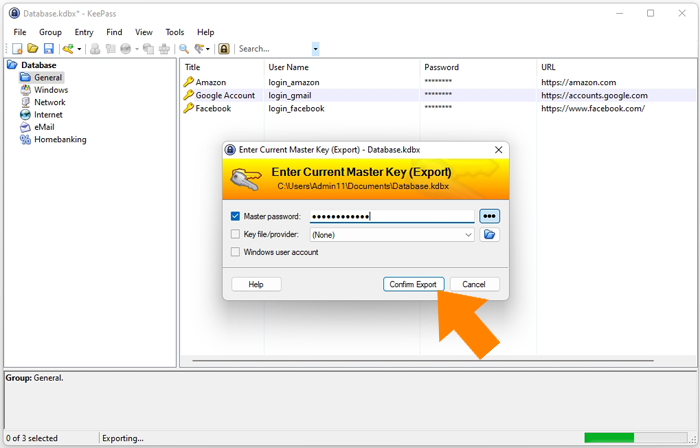
Enter your Master Key when prompted, then click Confirm Export.
💡 Note: KeePass exports data in CSV, which is not encrypted. To protect your information, delete the file right after completing the import—Sticky Password will keep everything encrypted.
When the export finishes, your CSV file is ready to import into Sticky Password.
File format: CSV — KeePass Help Center (CSV import/export, supported fields, and encoding)
Import / Export — KeePass Help Center (full overview of transfer formats and related options)
KeePassXC (Windows, macOS, Linux)
Exporting databases — KeePassXC User Guide (CSV, XML, and HTML export and their limitations; for Sticky Password, use CSV)
KeePassXC: Getting Started — overview of features, including database export
KeePassium (iPhone, iPad, Mac)
How to export database — KeePassium
KeePassium support — knowledge base and articles
Strongbox (iPhone, iPad, Mac)
Export your Strongbox database to a CSV file — Strongbox Support (macOS and iOS steps for CSV export)
KeePass2Android (Android)
KeePass2Android documentation — project wiki (database backup, export, and related topics)
KeePass2Android file handling — where databases live, backup, and export paths
When you have finished the CSV export, return here and use the Sticky Password import steps for your platform to bring the file in.
Как нам улучшить ответ?
Отправить отзывСпасибо!
Спасибо! Мы сделаем все возможное, чтобы улучшить этот ответ.
Произошла ошибка. Приносим извинения за неудобства. Повторите попытку.