How to import your passwords from Dashlane on Mac
Sticky Password can import data from a variety of other managers. Bringing your Dashlane logins into Sticky Password is a quick and straightforward process that takes only a few simple steps.
Exporting passwords from Dashlane
Step 1
The first step takes place in Dashlane, where you’ll export your data. You can find the instructions here. Make sure to save the export as a CSV file to ensure it imports correctly into Sticky Password.
Importing passwords into Sticky Password
Step 2
Open the Sticky Password application.
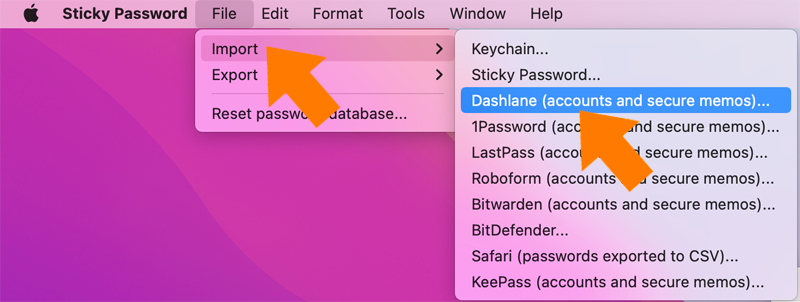
Click File → Import → Dashlane (accounts and secure memos).
Choose the Dashlane export file you exported earlier. Click Import.
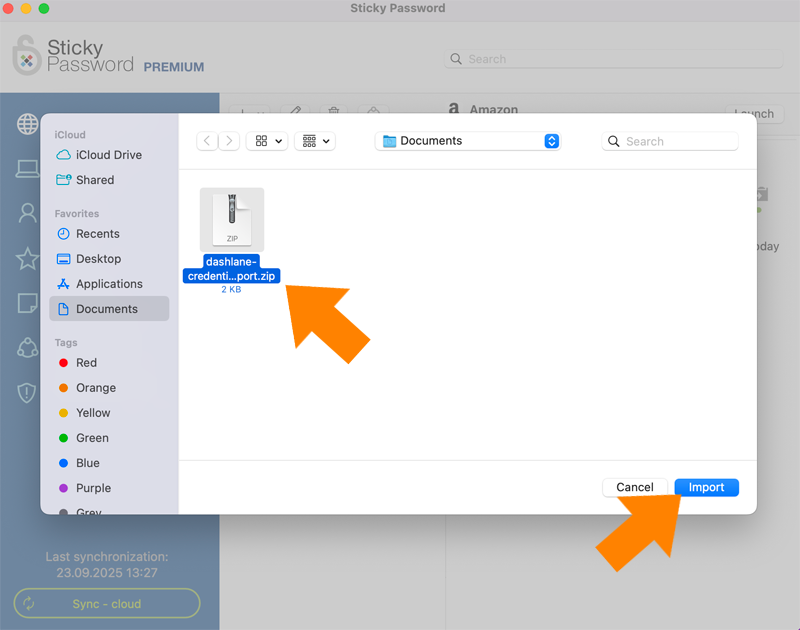
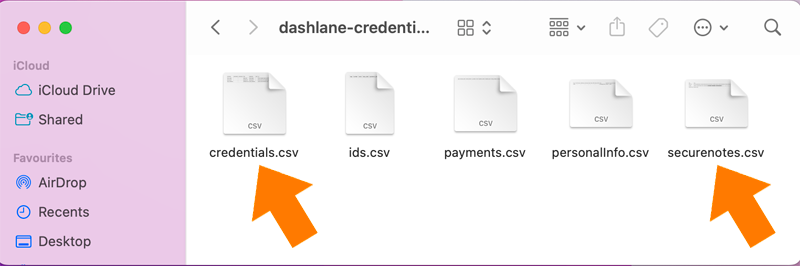
💡 Note: You can either select the ZIP file directly, or extract it first and choose the appropriate CSV file (credentials.csv or securenotes.csv), depending on the type of data you want to import.
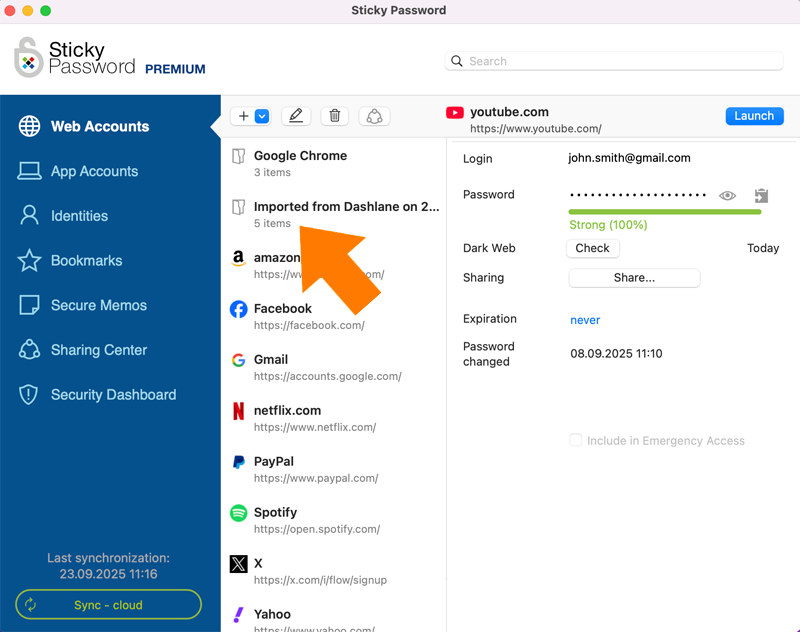
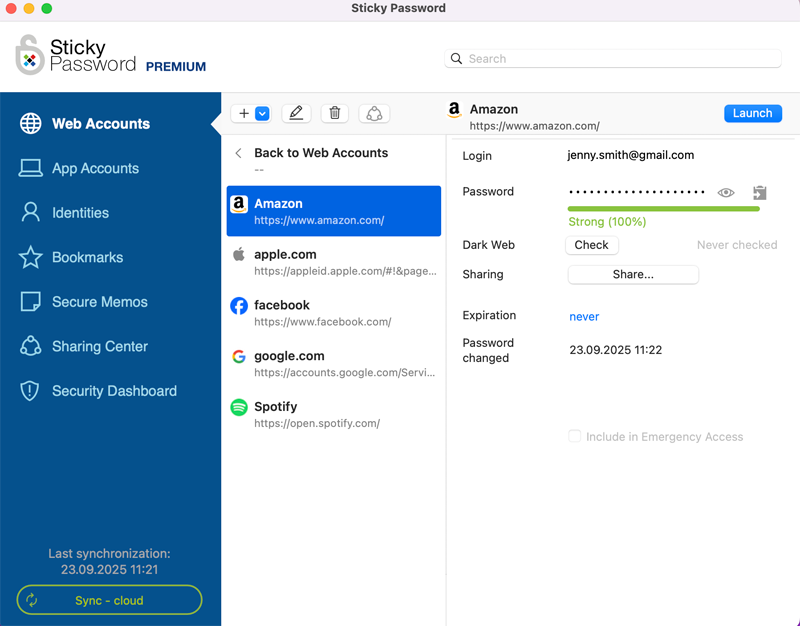
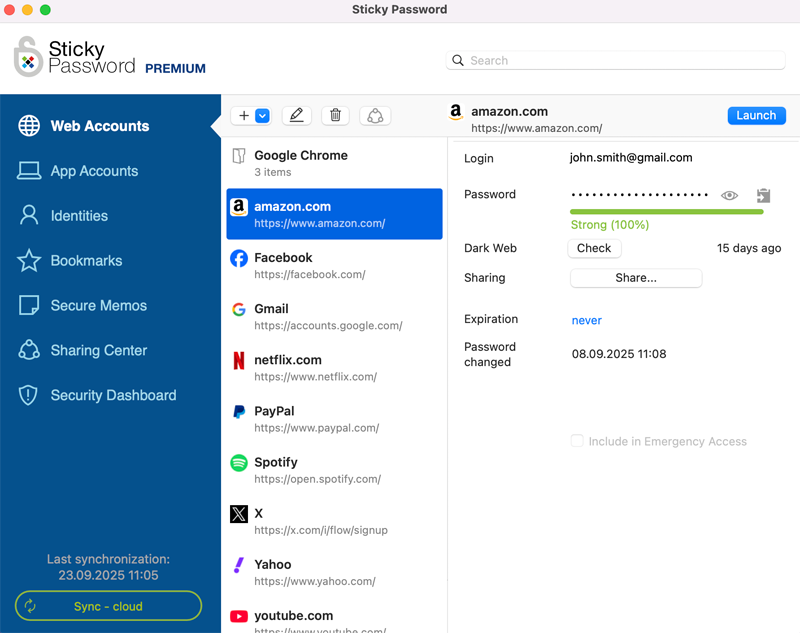
The import is complete. The imported accounts are listed in a separate folder.