

How to Take Control of App Permissions
 Sticky Password
- September 10, 2025 , Sticky Password
- Password & security
Not all app permissions are safe. While some may seem necessary, others have malicious intent for privacy breaches. Data is precious, and users should take care of it to avoid any theft. Before we go into details of how to take control of app permissions, let’s look into why we should take control, first.
App permissions are essential for approving the functionality of specific applications. However, monitoring them closely is crucial so that you can take control of your data, personal information.
Your phone data can give access to your personal details, family details, financial matters, travel history, family photos, and other important aspects. And if someone accesses your data, it might lead to scams, big-time financial losses, information leaks, or breaches of your privacy. Limiting your phone access is crucial to ensure safety and avoid data breaches.
Security and Privacy Concerns
The main goal of taking control of app permissions is it should not access your private details. Not all requests are a threat to your security and privacy. Data access needs to be a privilege, not a right. Watch out for the applications that access your device by default especially when downloading suspicious ones. This can critically compromise phone security.
Various applications only request permission where necessary. For example, an Instagram application might ask permission to access your gallery to upload pictures to your timeline, which is fine. We have to say a ‘yes’ to access requests where it’s necessary.
There are several ways to avoid any unfavorable outcome. Users need to take the following measures to take control of unfavorable outcomes.
- Adjusting settings manually (iOS & Android)
- Reviewing permissions regularly
- Only downloading trusted apps
- Using privacy-focused alternatives
- Install only if you use it
- Remove all the unnecessary apps
Always be mindful
While these may sound like some technical things, you can also slow down to avoid any unfavorable happenings. For example, downloading them in a hurry might cause you to overlook the critical permission requests. Always be mindful when using or installing various apps. Once installed, you can always adjust or re-adjust your application accessibility.
Asking for extra data is bad
Asking for extra data is bad, and we don’t want that. For example, if a calculator asks for app permissions for the camera or contact list, or photos, it is clearly ‘overreach.’ And, there is no reason for a calculator to access data to perform its function. In this case, you should clearly revoke the permission. We want to say yes only to apps that ask for appropriate access rights.
How to adjust app permissions on your device
Ensuring safety requires prior technical knowledge. If you don’t understand how it works, make sure you take time to study the user agreement of the applications.
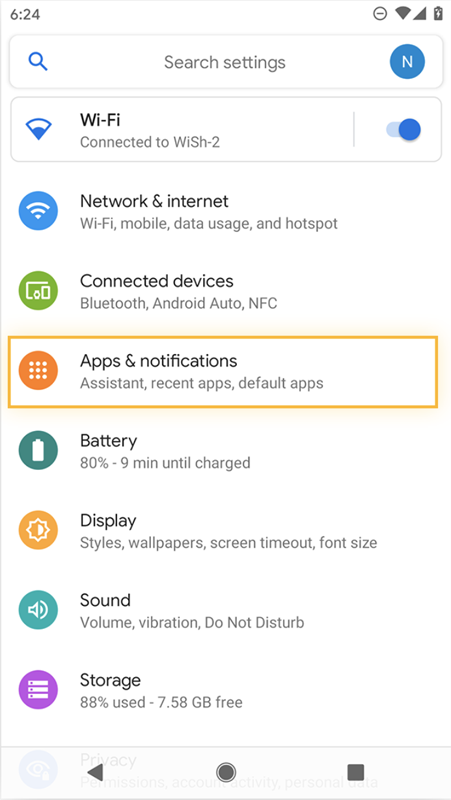
Whether you use an iOS or an Android, each device has different ways to adjust and access applications. Expect each tool to ask for access requests. The first thing is to familiarize yourself with the applications that might require an app permission. If any of your family members is using/installing an app, educate them regarding phone accessibility to ensure the safety of your family personal and financial history.
Below are step-by-step guidelines to manage app permissions for iOS & Android:
iOS:
- Open settings on your iPhone/iPad.
- Navigate to setting app.
- Click on ‘Privacy & Security’.
- Opt specific permission for microphone, gallery, location etc.
- For each app permission, you will see all the applications that you have on your iPhone.
- Toggle the switch accordingly, whether you’d like to allow permission or not.
Android:
- Go to the settings option on your Android.
- Tap on Apps.
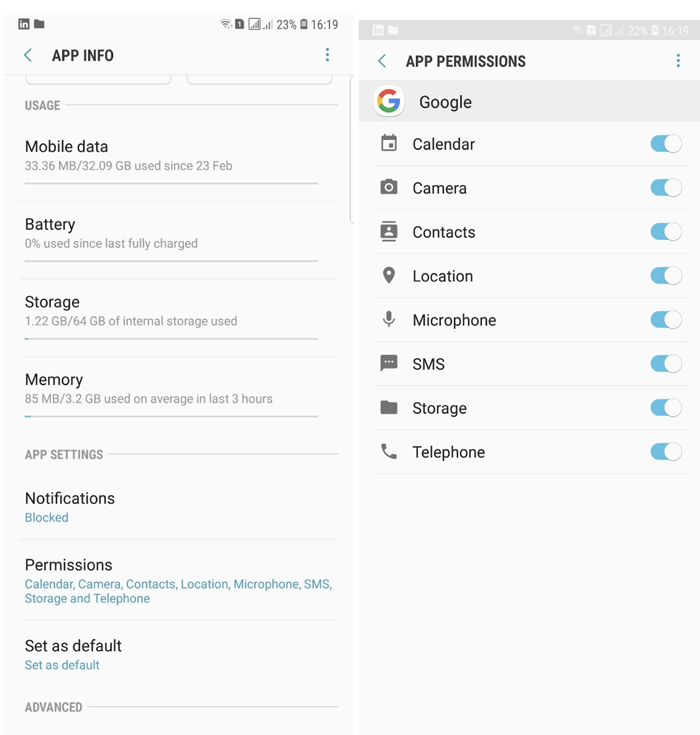
- You will find a list of apps, click on each of them.
- Click on permissions to allow or revoke accessibility to calendar, camera, contacts, location, microphone, sms, storage or telephone.
- Toggle the switch to allow permission or not.
Other important tips to keep in mind
- Always download apps from trusted sources. Downloading applications from trusted sources can give you peace of mind and security.
- Always monitor permissions regularly, and revoke access to your device when it’s not needed.
- User privacy-focused alternatives. Install apps that provide high-end security and privacy features.
- Revoke permission when you feel suspicious — if you feel any access request is unnecessary, revoke permission instantly.
- And, always remember to only browse websites that use an encrypted connection to ensure your phone is secure during transmission.
Final Thoughts
Overlooking app permissions can bring huge consequences if not monitored carefully. They are crucial most of the time. But in some situations, they can lead to data breaches, privacy concerns, and misuse of private information. Tapping ‘allow’ can give malicious agents access to your personal details, important files/documents, photos, travel history, etc. This unauthorized access can lead to identity theft, privacy breaches, or misuse of your information without your knowledge.
Always be mindful of how to use app permissions for your data privacy and personal safety.