
How to delete your password database from the cloud and disable cloud sync
Sticky Password offers multiple synchronization options. While many users prefer the convenience of cloud services like Sticky Password Sync or Dropbox, others choose local synchronization for greater control over their data. You can change your synchronization method at any time.
This guide explains how to delete your encrypted password database from your secure StickyAccount in the cloud.
Deleting the cloud database permanently removes the backup stored in your StickyAccount and stops cloud synchronization. This step is recommended only if you plan to switch to local synchronization or disable synchronization completely.
-
Change the synchronization method from Sync - cloud to Sync - local or Disable sync as shown in this tutorial.
-
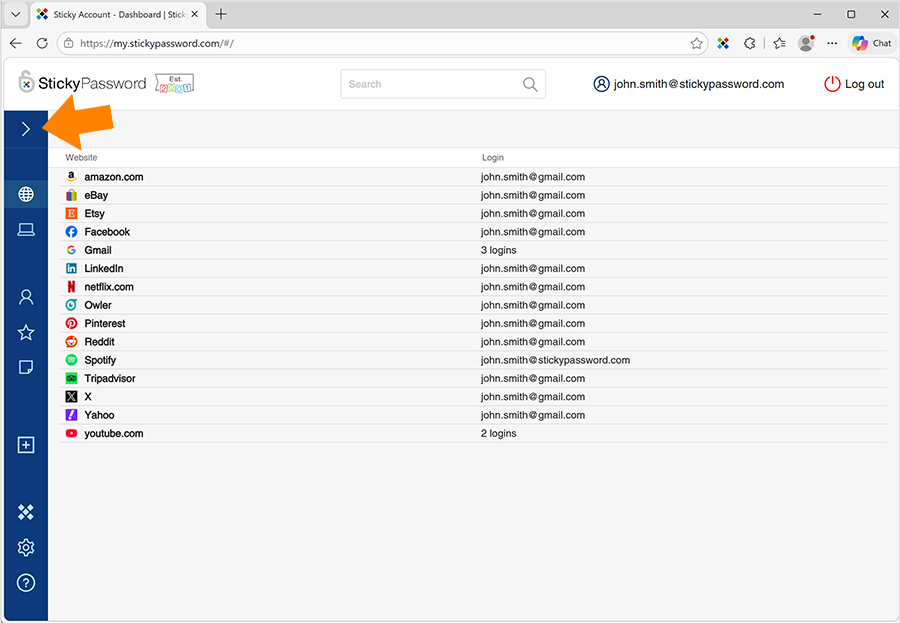
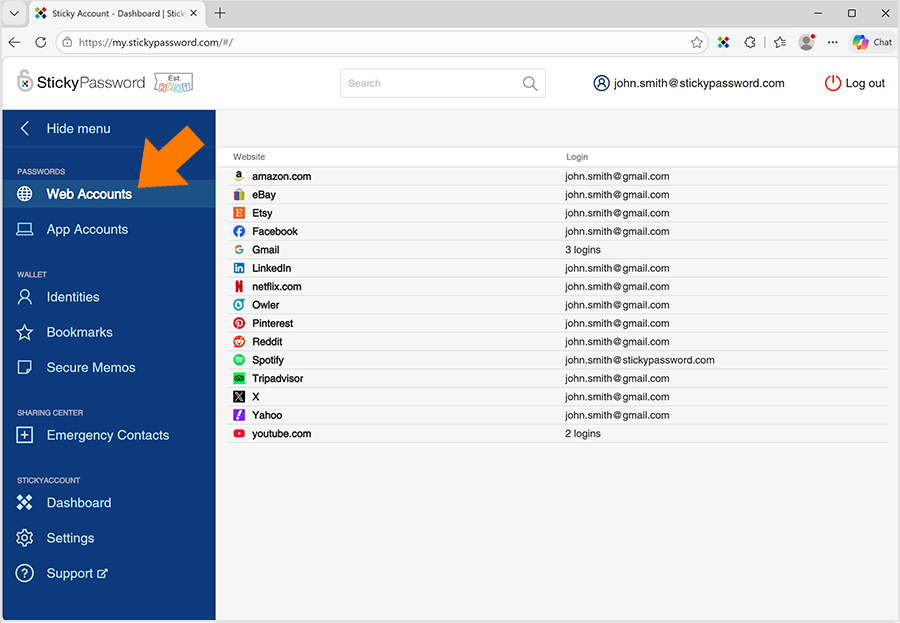
Sign in to your online StickyAccount In the left sidebar, click the arrow at the top of the menu to expand the full navigation menu, then click Settings.
-
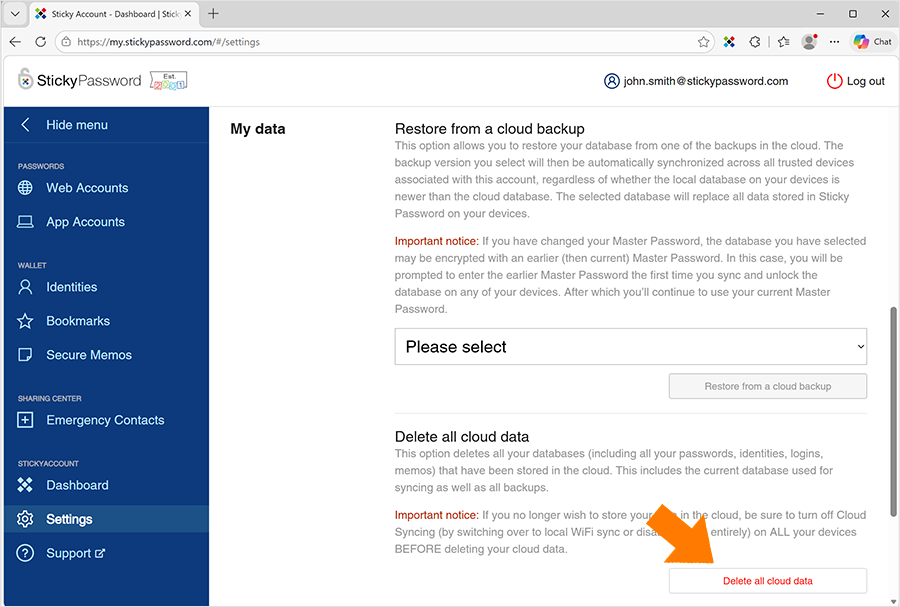
Scroll down to the My data part. You'll find the Delete all cloud data section. This option deletes all your data from your StickyAccount in the cloud. Click Delete all cloud data.
Note: Data stored on your devices will not be impacted.
-
Confirm that you wish to delete your backup database by clicking Delete all data.
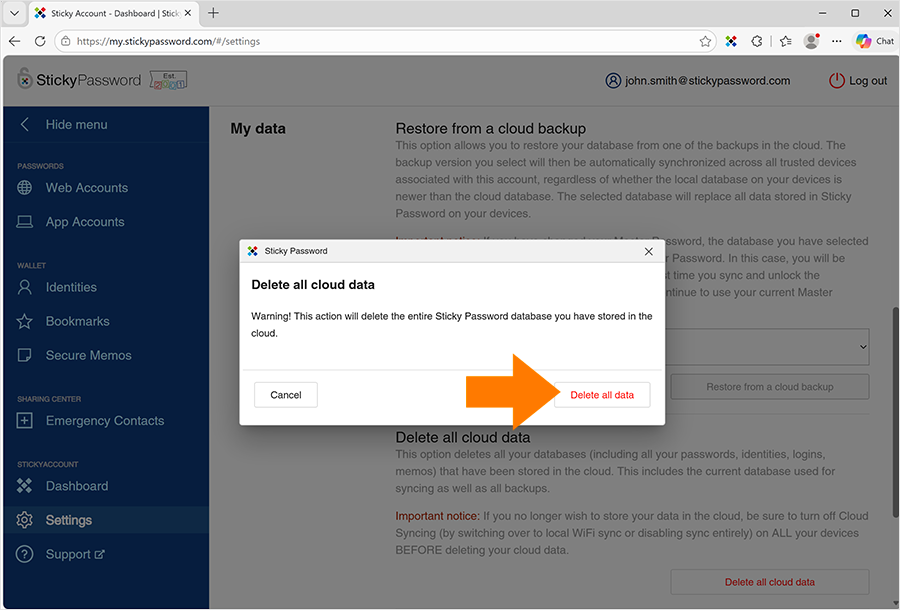
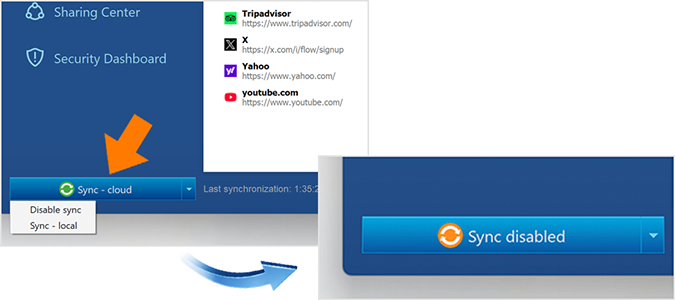
Your database that was previously synced across your devices will no longer sync automatically. Each device will now maintain its own independent database as you continue using Sticky Password.
If you want your devices to sync automatically in the future, you can reactivate Cloud Sync. If you use Local Sync, you will need to manage the synchronization process manually.