
Working with Secure Memos on Windows
Do you use paper notes to jot down ID, registration and other important numbers, security and access codes, software license keys, and even the occasional private idea or note to yourself? In this tutorial we will introduce you to Secure Memos.
What are Secure Memos?
To help you keep track of information like ID and passport numbers, wifi passwords, and anything else that you’d like to keep secure and have easy access to, as well as other information like non‑typical answers to security questions, we’ve created Secure Memos.
Creating a new Secure Memo
-
Open Sticky Password and click Secure Memos.
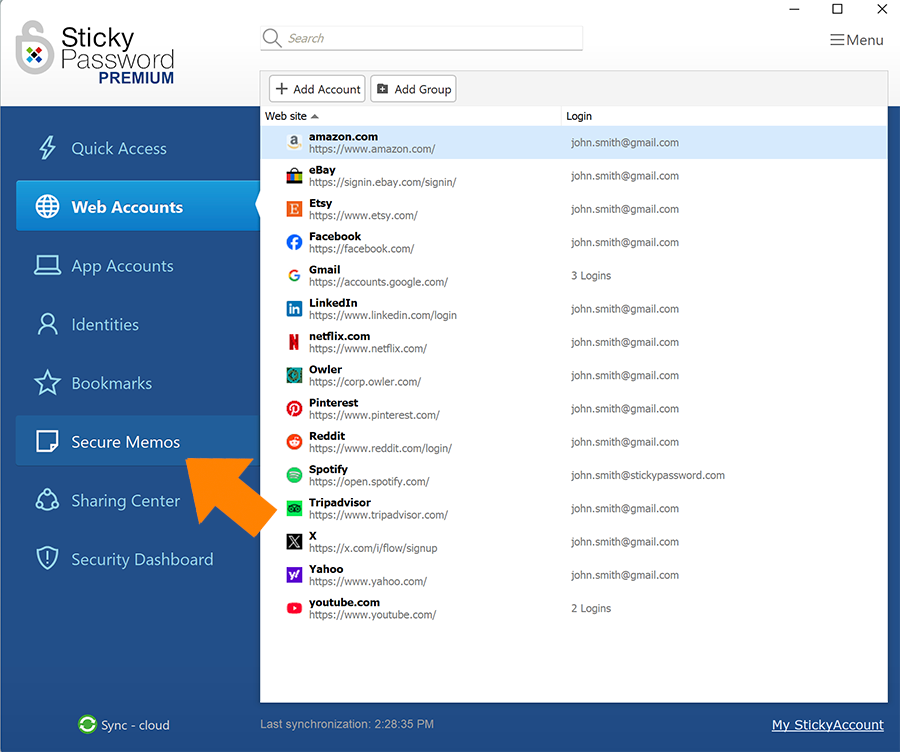
-
Click Add Memo.
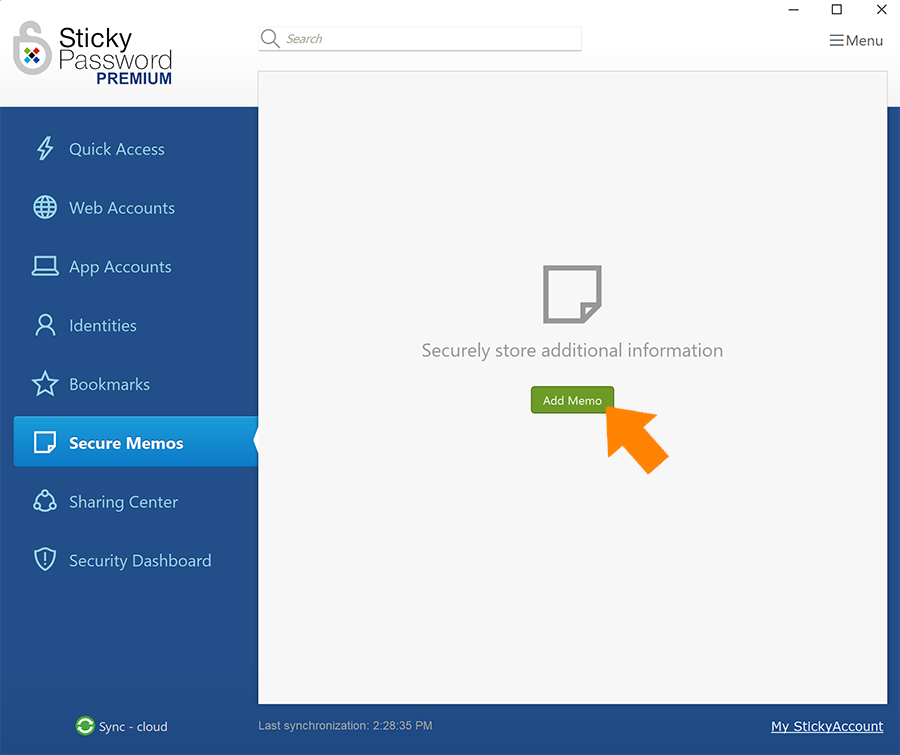
-
Give your new memo a unique name by typing over the pre-defined name ‘New Secure Memo’ – we’ll call ours ‘Security Questions’, enter the text of your new Secure Memo and click Add.
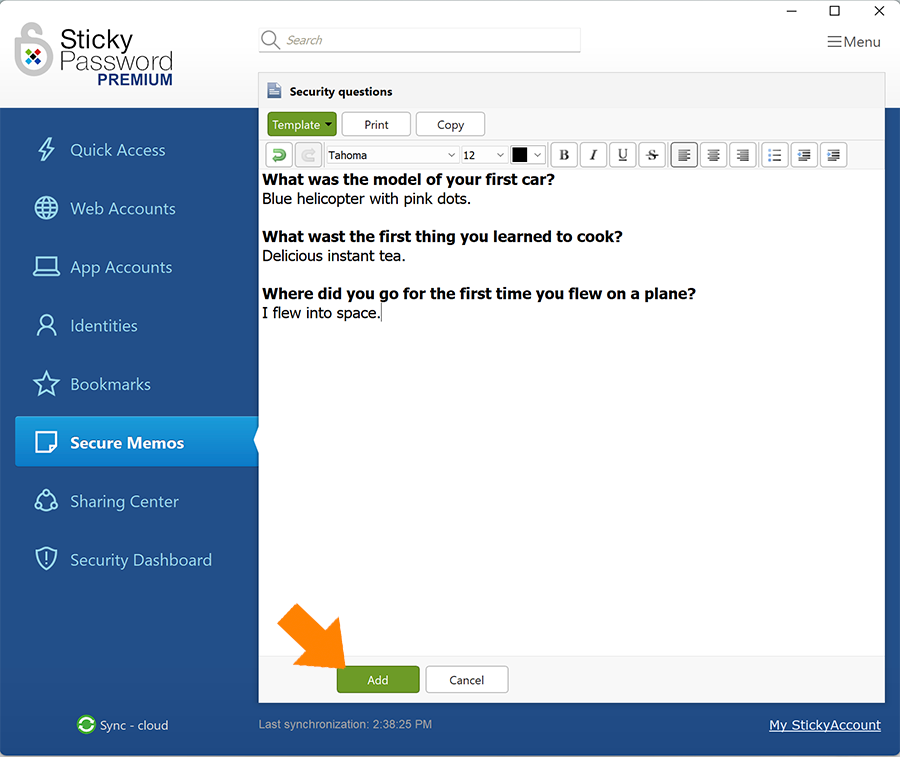
Displaying your Secure Memos
-
Your Secure Memo can be displayed from the main Sticky Password window. Simply click Secure Memos in the Sticky Password main window, select your Secure Memo and the Display button appears.
For quick access, you can add frequently used Secure Memos to Favorites.
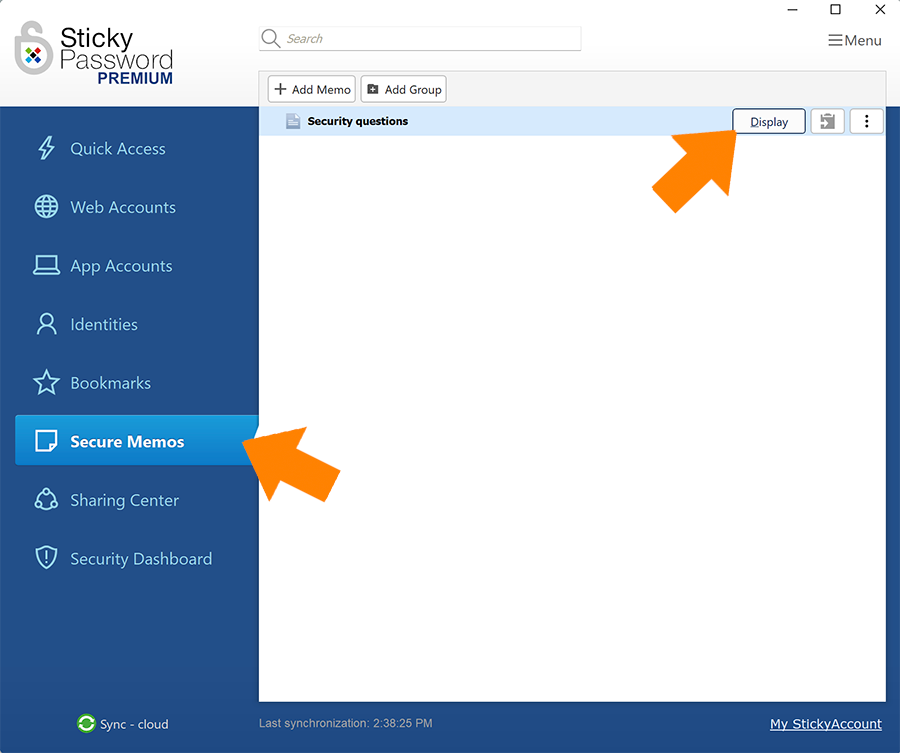
-
Your Secure Memo will appear in the bubble in the lower right corner. Now you can read the info, or copy and paste it whenever you need it.
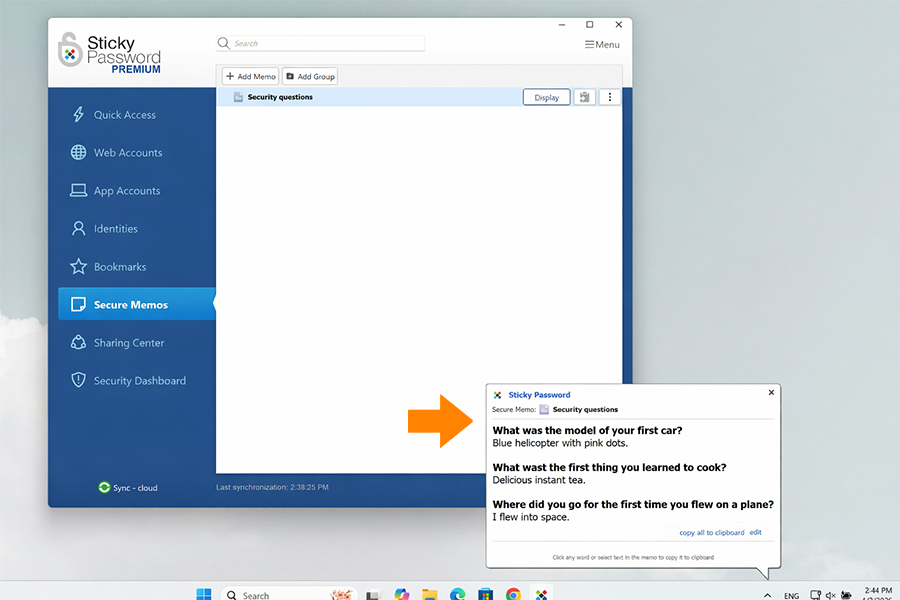
You’re all set to add and use Secure Memos — no more paper notes needed.
Security tip: use Secure Memos to store your security questions
Struggling to remember the answers to your security questions? Secure Memos can help you store them safely and access them anytime.
Security questions are meant to protect your account by helping you regain access while keeping others out. For this reason, your answers should be difficult for anyone else to guess. Avoid common questions like "What is your mother’s maiden name?" because these can often be found or guessed by people who know you or through publicly available information.
For stronger protection, consider using unexpected or unrelated answers. For example, for the question "What elementary school did you attend?", you could answer "pizzeria". Unusual answers like this make it much harder for someone else to guess correctly, even if they have some personal information about you.