
Contactless Connect
How to export your data from Google Chrome
To import your data into Sticky Password, first export your passwords from Google Chrome.
What format to export
For Sticky Password import, export your Chrome passwords in CSV format.
Export passwords from Google Chrome
-
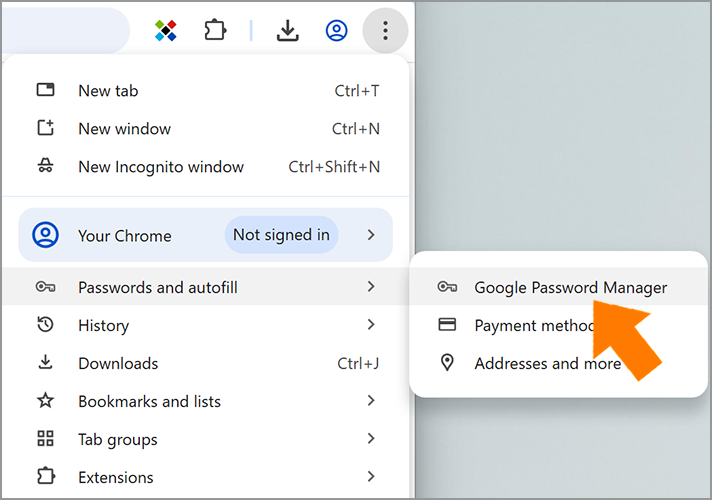
Open Chrome. Go to Settings -> Passwords and Autofill -> Google Password Manager.
-
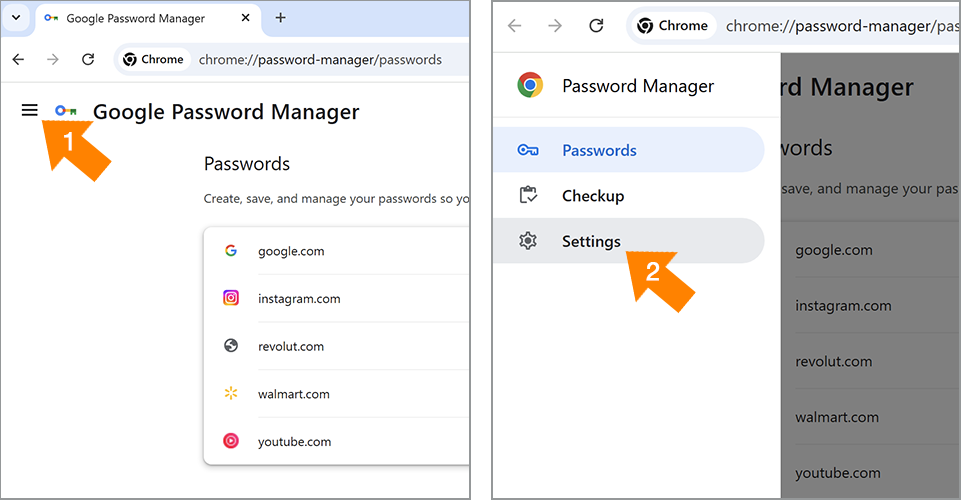
Click the Menu button in the upper-left corner, then select Settings.
-
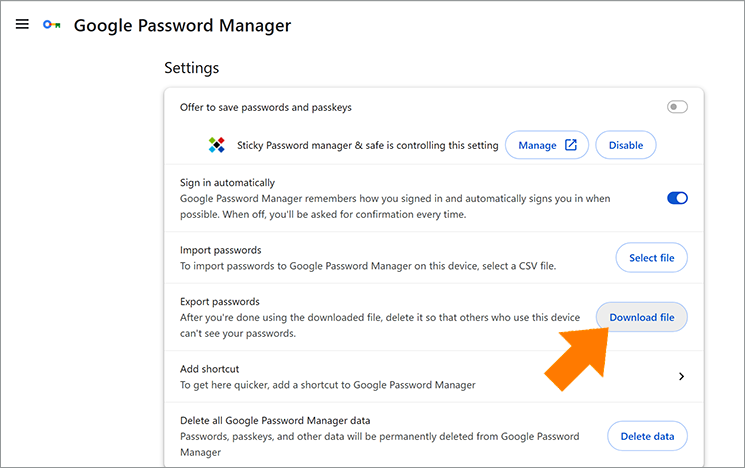
Click Download file next to the Export passwords field.
-
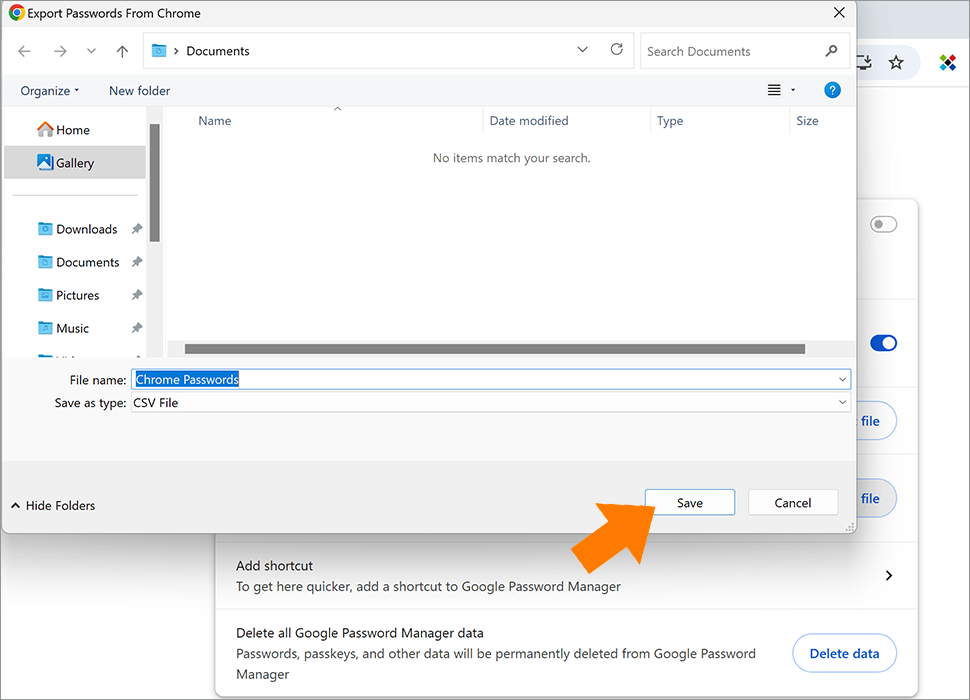
Choose the folder where you want to save the CSV file.
Official Google documentation
Google updates its interface from time to time, so always follow the latest official instructions:
- Import or export passwords with Chrome — Google Chrome Help
- Manage passwords in Chrome — Google Chrome Help
Important security note
Exported CSV files are not encrypted. Anyone with access to the file can view your passwords.
For your security:
- Export only on a trusted device.
- Import the file into Sticky Password right away.
- Delete the exported CSV file and any temporary copies after import.
Next step
After exporting your passwords from Chrome as a CSV file, return to Sticky Password and continue with the import instructions for your platform.