
How to import your passwords from RoboForm on Windows
Sticky Password can import your passwords from several password managers. Let’s take a look at moving your RoboForm passwords over to Sticky Password in two easy steps.
Exporting passwords from RoboForm
To start, you’ll need to export your passwords from RoboForm. Make sure you choose the CSV format for the exported file.
Note: the RoboForm export file is in CSV format which is not encrypted. As always with anything involving your passwords, it’s important to delete the unencrypted file right after you import it into Sticky Password – where all the data will be stored in encrypted format.
Importing passwords into Sticky Password
-
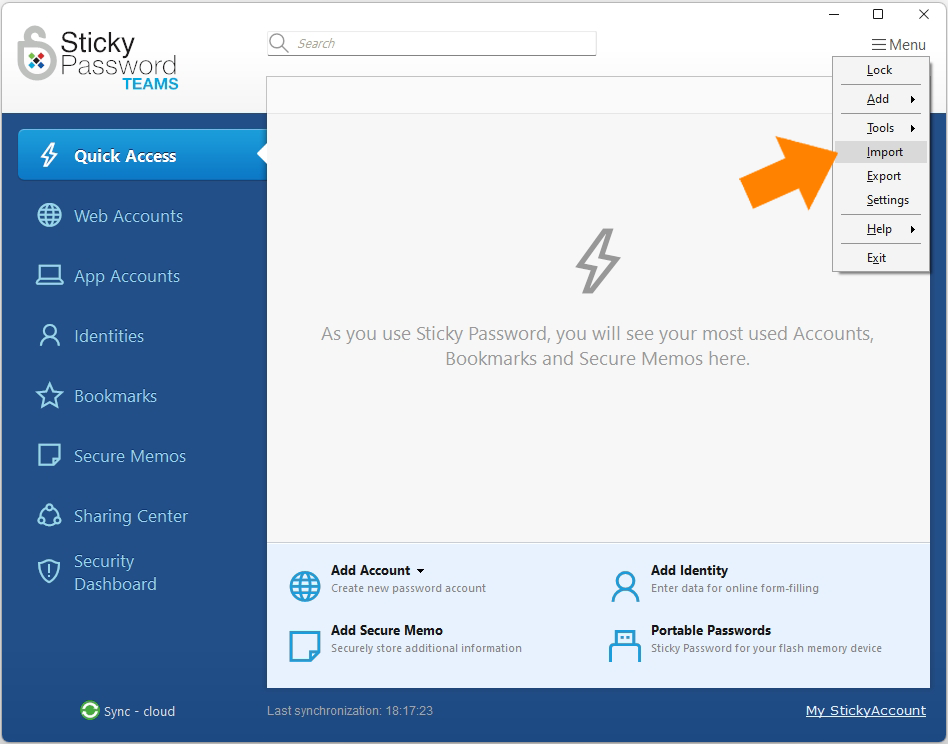
Open the Sticky Password app and navigate to Menu → Import
-
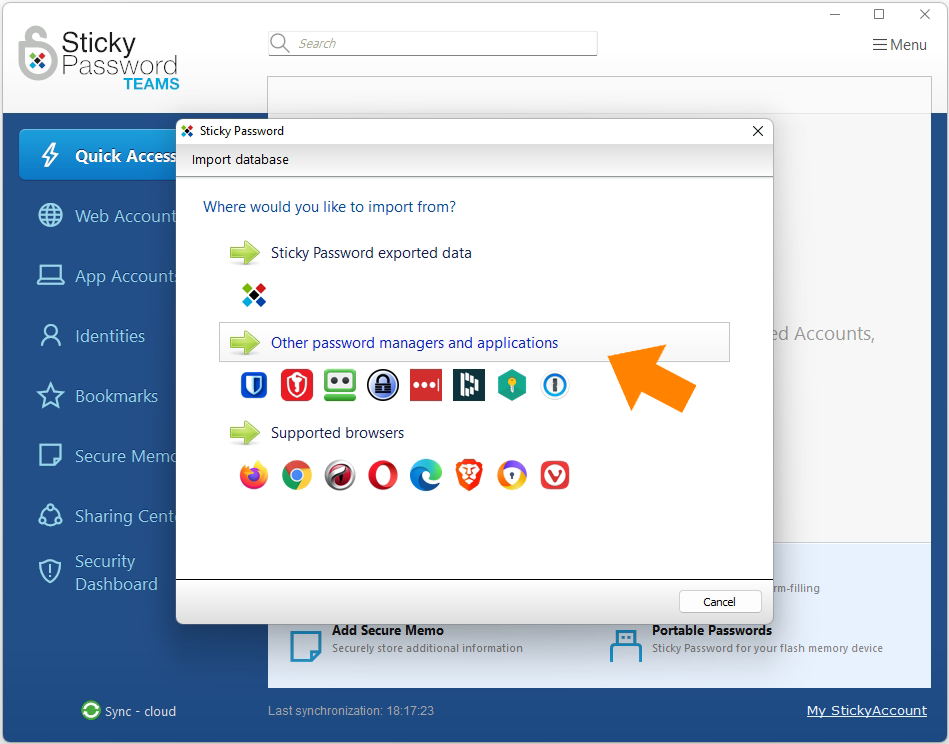
Select Other password managers and applications.
-
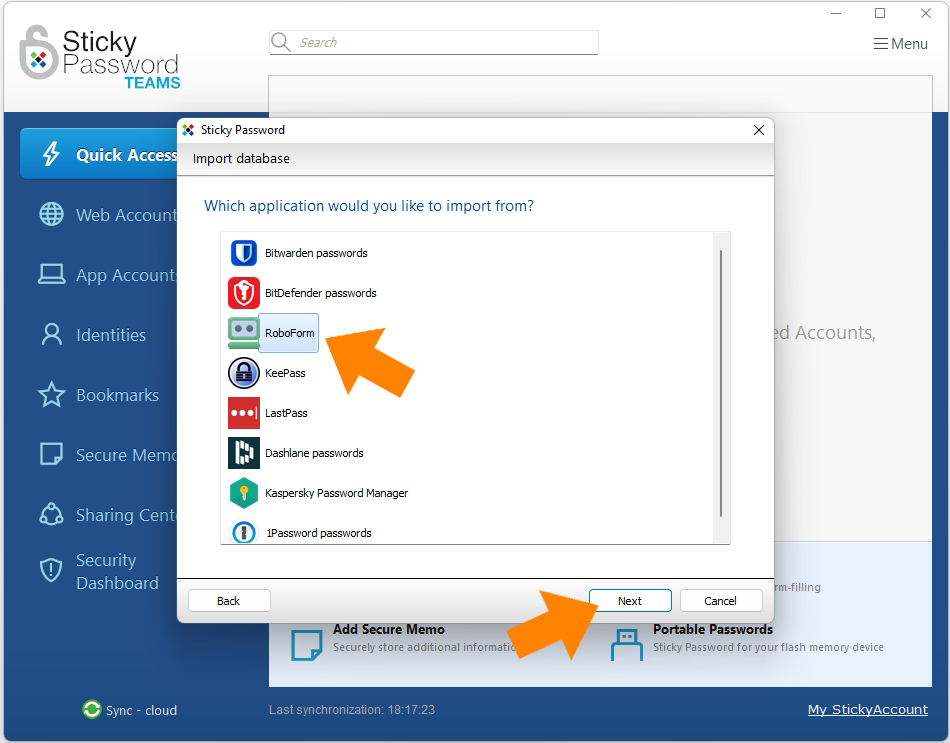
Select RoboForm and click Next.
-
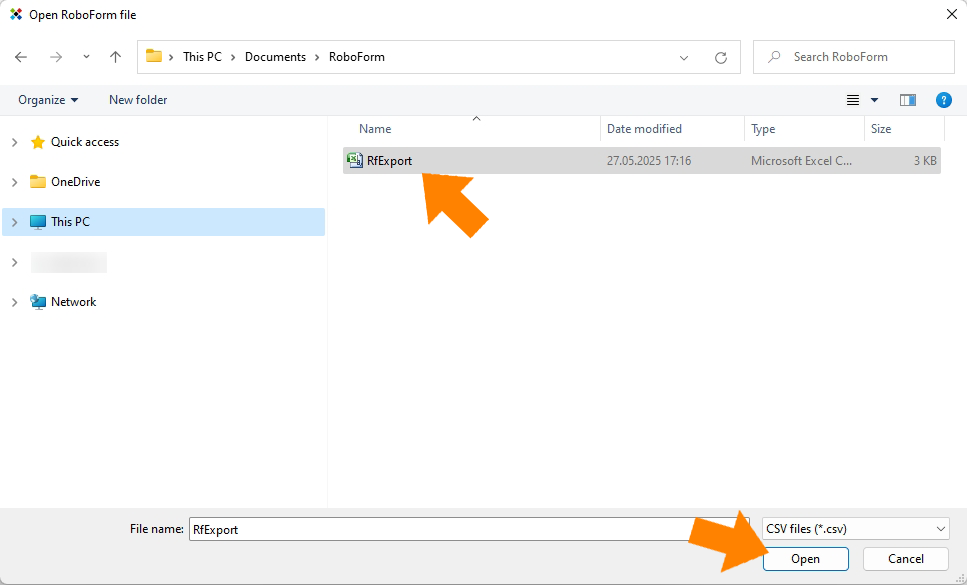
Select the RoboForm file you exported above, and click Open.
-
Depending on your choice, click Import all or Import only selected items.
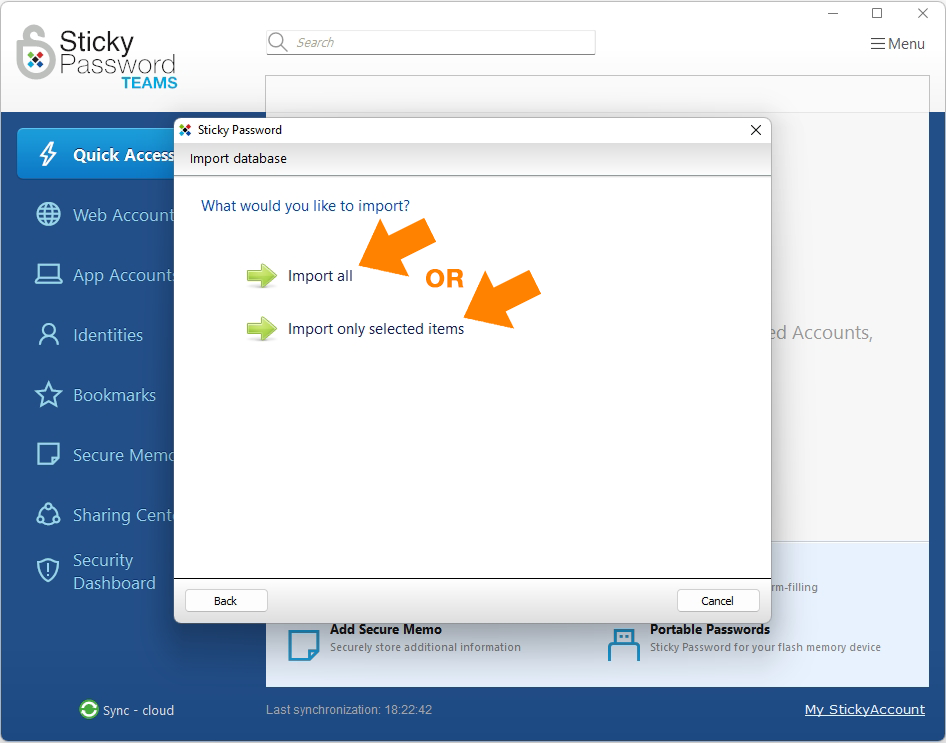
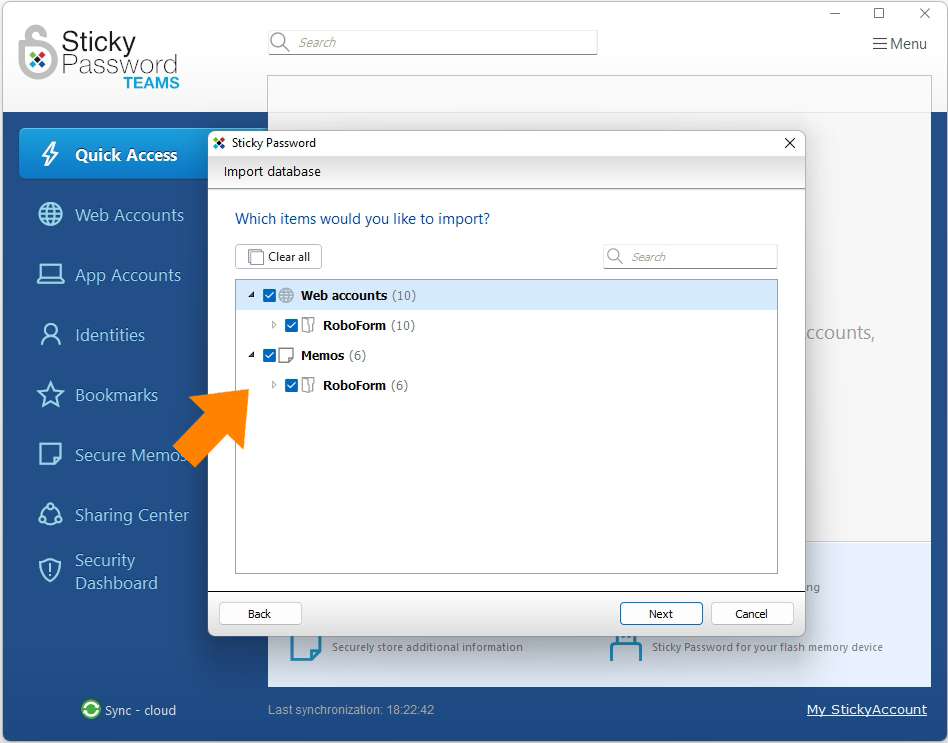
Note: if you choose to import only selected items, check the boxes next to the ones you want to import.
-
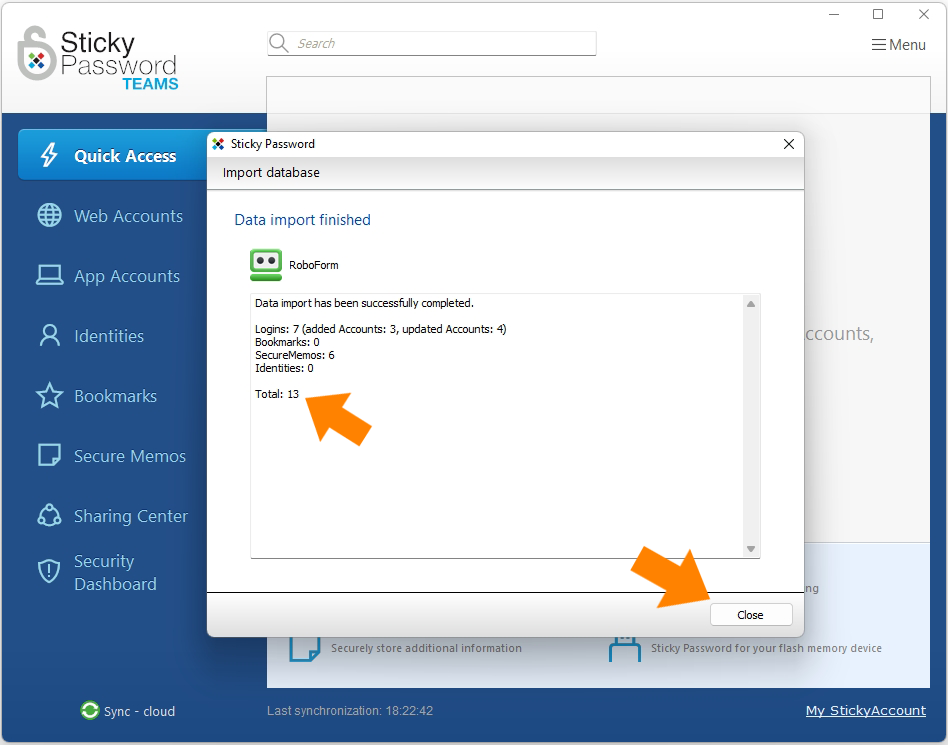
Data import has been successfully completed. Here you can see the number of Accounts that were imported. Click Close.
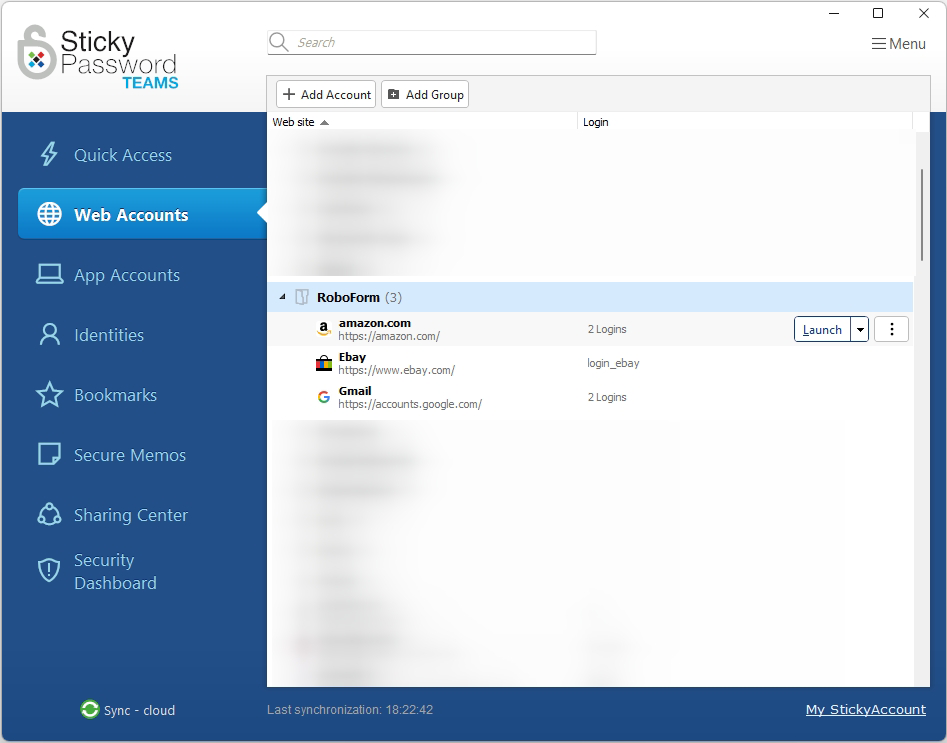
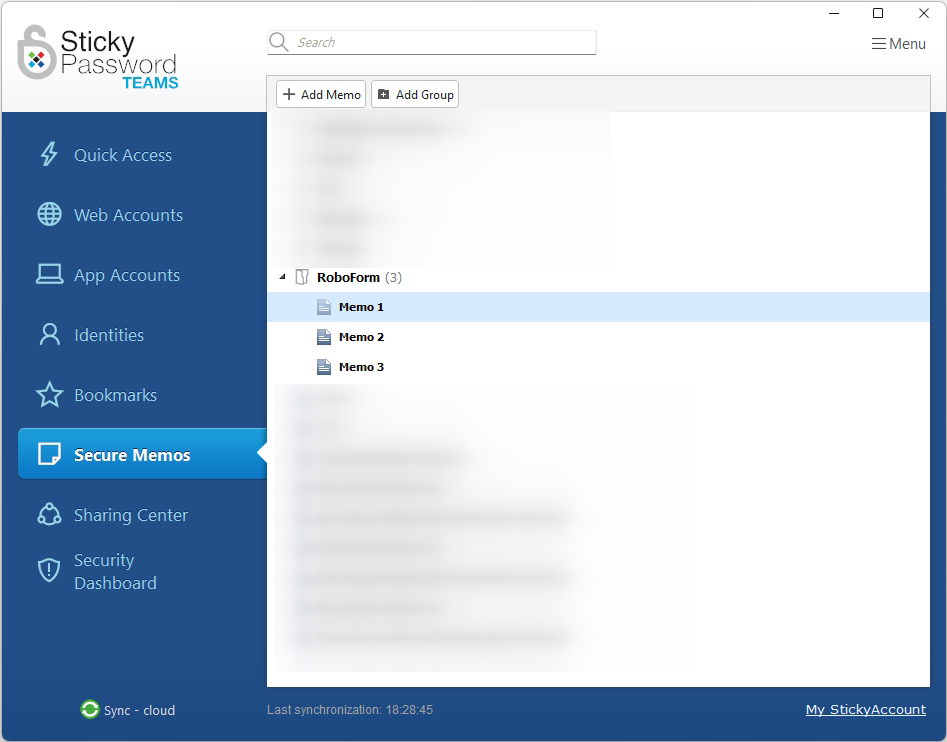
Congratulations! Your passwords exported from RoboForm are now stored in the Sticky Password database and ready to use. Now that your passwords are safely in Sticky Password, make sure to delete the CSV file!