
How to import your passwords from 1Password on Mac
Moving your passwords from 1Password to Sticky Password is quick and effortless. In just a few easy steps, you can securely transfer your saved logins and start managing them all in one place.
Exporting passwords from 1Password
To move your stored information to Sticky Password, start by exporting it from 1Password. You can import data from 1Password 7 using a .csv file, or from 1Password 8 using either .1pux or .csv. Both formats are fully supported, so simply choose the one that fits your setup and follow the steps described here to complete the transfer.
💡 Tip: When exporting from 1Password 8 in .csv format, only login entries are included — notes are excluded. The .csv file from 1Password 7 includes both logins and notes, allowing you to bring everything into Sticky Password at once.
Importing passwords into Sticky Password
-
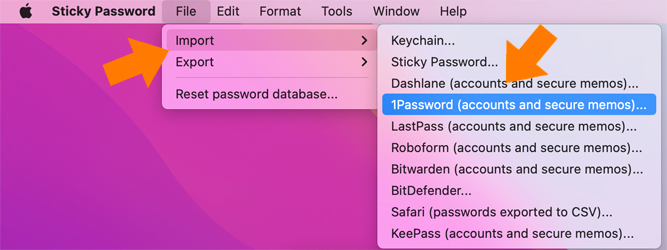
Open the Sticky Password app, go to File → Import, and choose 1Password from the list.
-
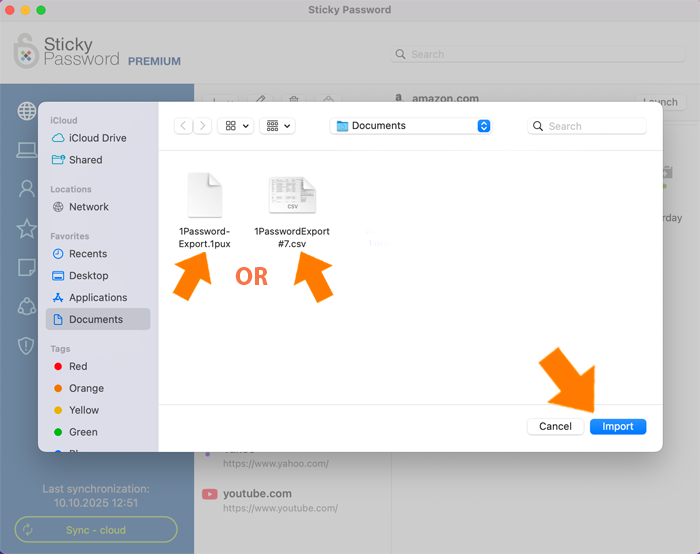
Select the .csv or .1pux file you exported earlier, then click Import.
-
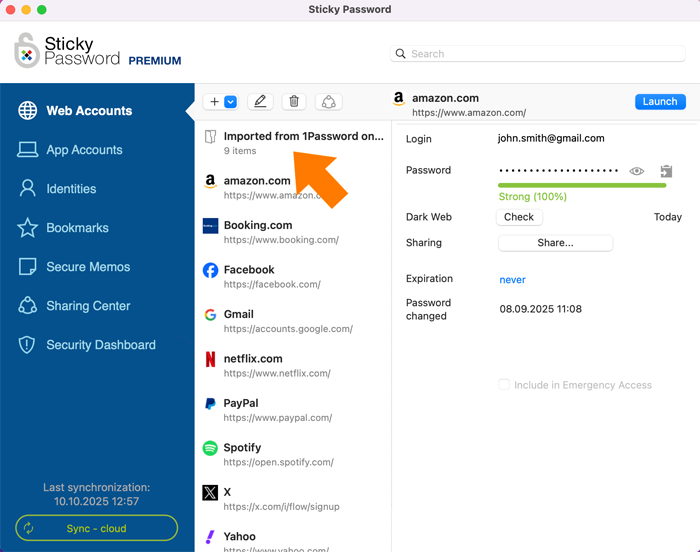
The import process has finished successfully. You’ll see your imported data in a separate folder, along with the number of imported items.
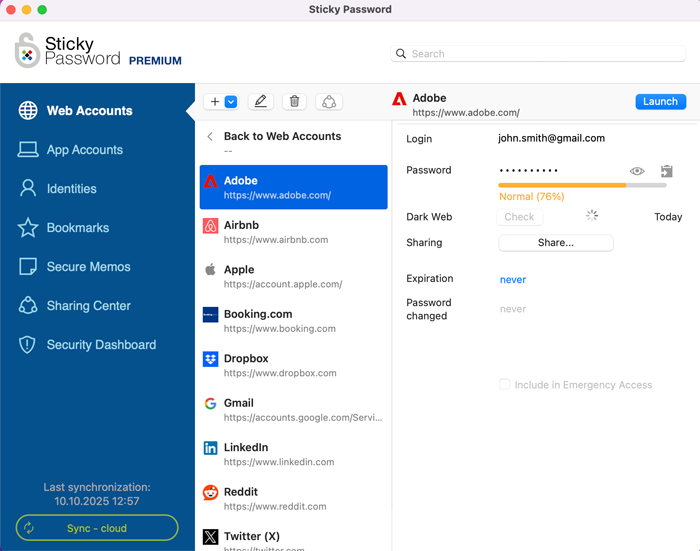
That’s how your imported items appear in the folder.
How can we improve the answer?
Send feedbackThank you!
Thank you! We will do our best to make this answer better.
An error has occurred. We apologize for the inconvenience. Please try again.