
How to import your passwords from 1Password on Windows
Switching from 1Password to Sticky Password is simple. In just several quick steps, you can move all your saved data and start managing them securely.
Exporting passwords from 1Password
To import your saved logins into Sticky Password, you first need to export your data from 1Password. Sticky Password supports importing data from 1Password 7 in .csv format and from 1Password 8 in both .1pux and .csv formats. Depending on your needs, you can export your information in either format — both are fully compatible with the app. Follow these step-by-step instructions to easily complete the transfer.
💡 Note: When exporting data from 1Password 8 as a .csv file, only account logins are included — notes are excluded and therefore won’t appear after importing into Sticky Password. However, a .csv file created in 1Password 7 also contains notes, so you can import notes from 1Password 7 along with your web accounts during the Sticky Password import process.
Importing passwords into Sticky Password
-
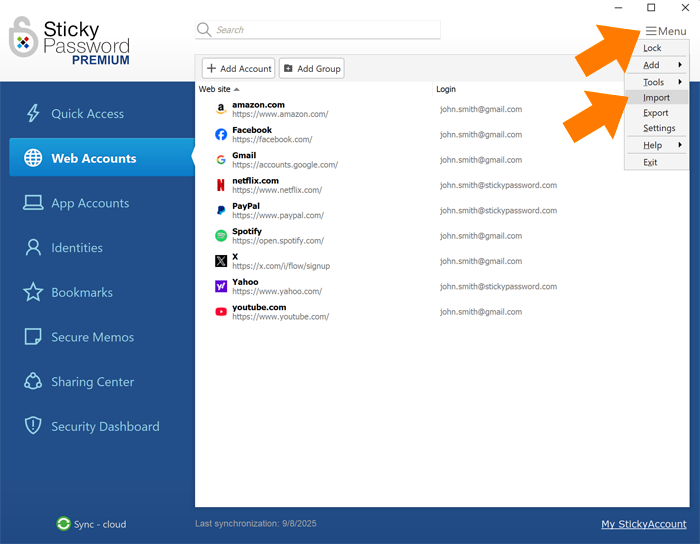
Open the Sticky Password app and navigate to Menu → Import.
-
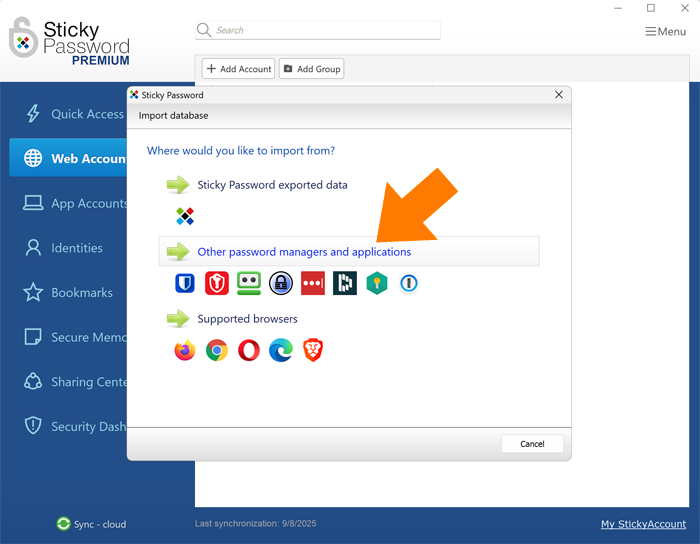
Select Other password managers and applications.
-
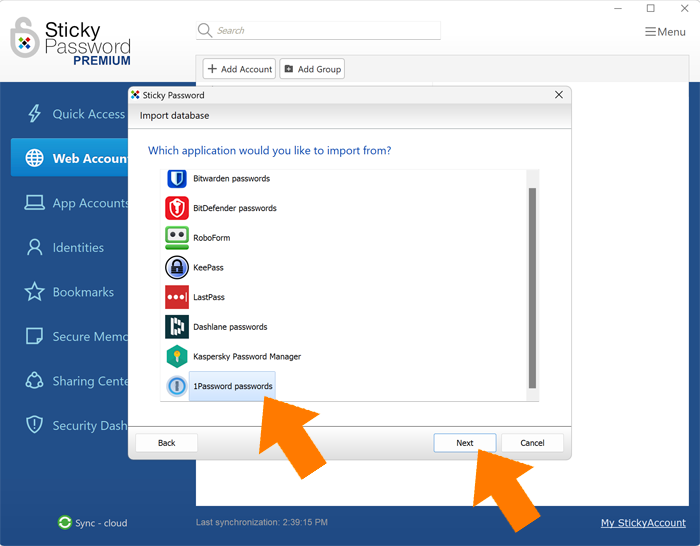
Select 1Password and click Next.
-
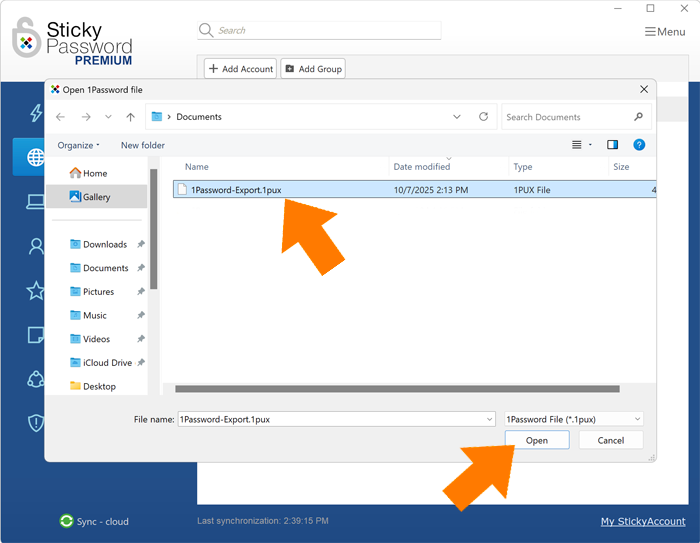
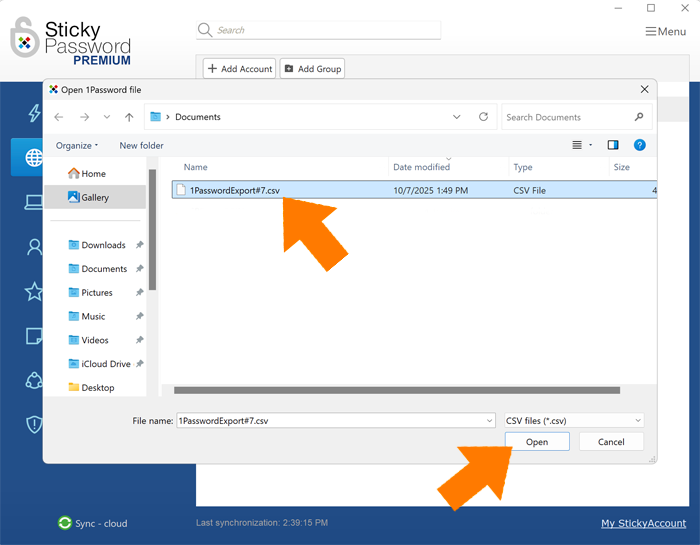
Select the CSV or .1pux file you exported above, and click Open.
-
Click Import all or Import only selected items.
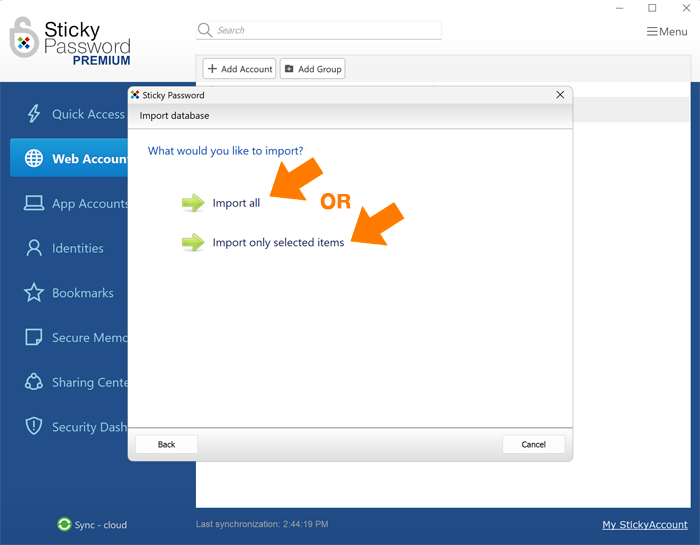
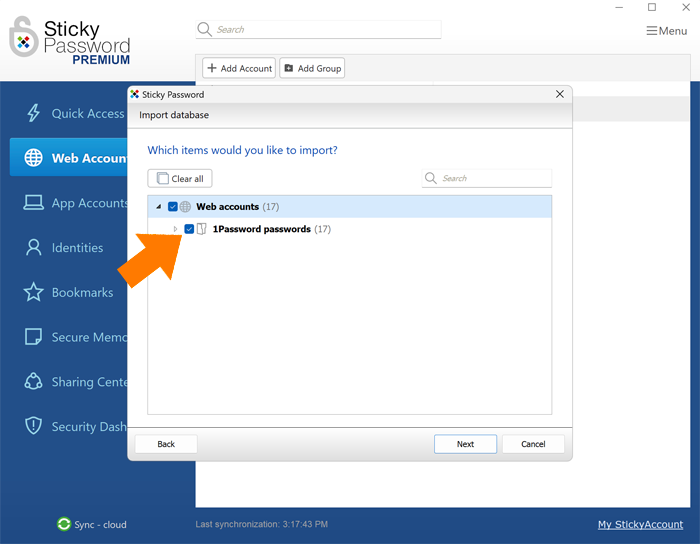
💡 Note: if you choose to import only selected items, check the boxes next to the ones you want to import.
-
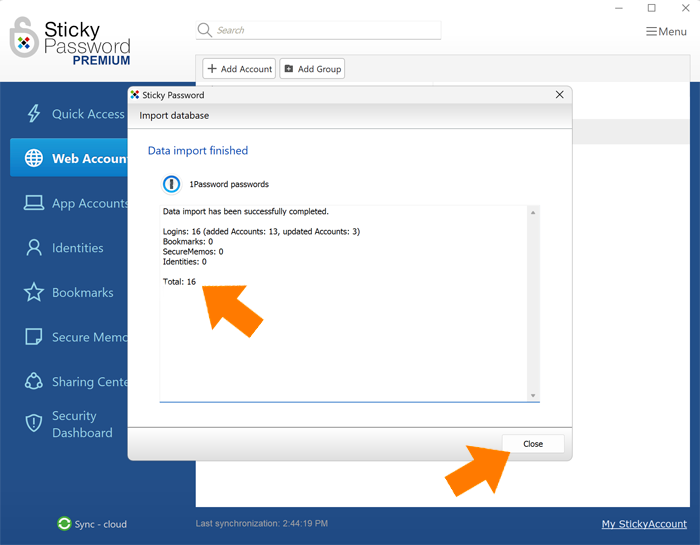
The import process is complete. The total number of accounts imported is shown below. Click Close to exit.
How can we improve the answer?
Send feedbackThank you!
Thank you! We will do our best to make this answer better.
An error has occurred. We apologize for the inconvenience. Please try again.