
How to create strong passwords with password generator on Android
In this tutorial we’ll take a look at how to generate strong passwords using the password generator on your Android device. Always keep in mind that your passwords are the first line of defense against cyber criminals.
Best practices
Let's summarize some best practices for strong and smart passwords:
- Use a unique password for each of your accounts.
- Use a combination of letters, numbers and special characters.
- Create a password that is hard for others to guess—Sticky Password does this for you.
- Make sure your password recovery options are up-to-date and secure.
- Change your passwords regularly - follow the guidelines on each site you use and always avoid predictable patterns.
- Protect your passwords by storing them in Sticky Password’s encrypted database.
Accessing the password generator via the main application window
Unlock Sticky Password and tap the menu icon in the top left corner.
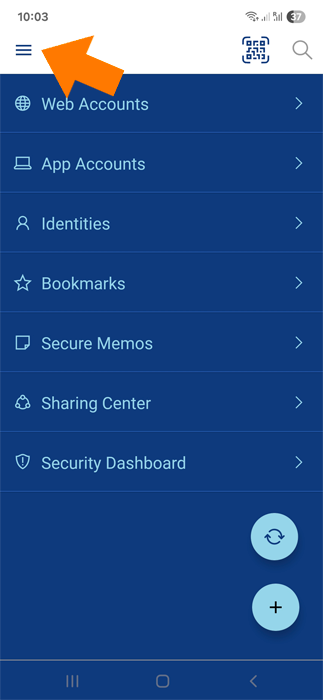
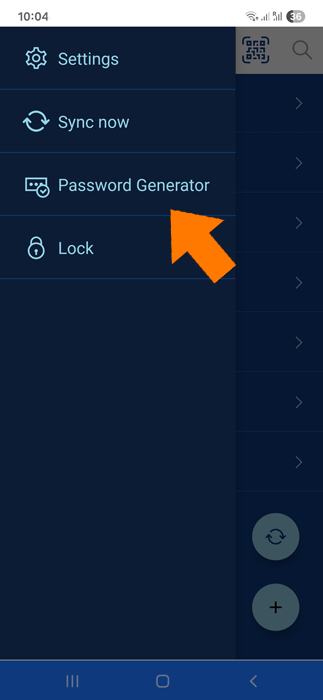
Select Password generator.
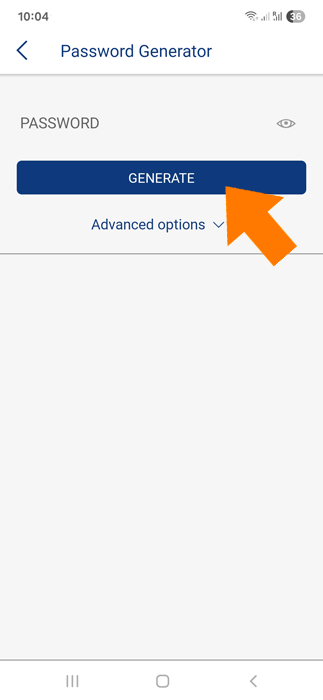
To generate a strong password simply tap GENERATE.
Select one of the options:
- Save to new Account—this option opens the dialog for adding a new web account and fills the password in the password field.
- Copy to clipboard—this option copies your generated password to the clipboard.
💡Note: Don’t forget to save this newly generated password in Sticky password!
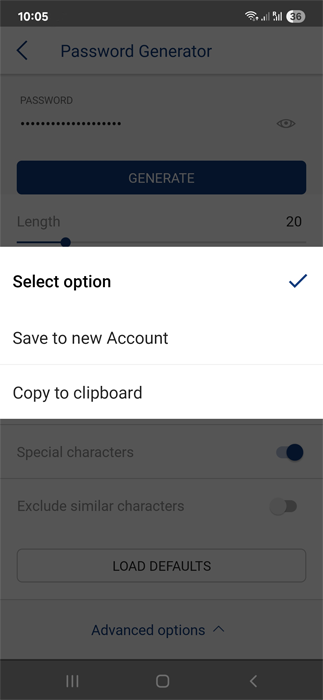
Advanced options for your password
Tap Advanced options to see more password settings: length, upper and lower case letters, numbers, special characters or exclusion of similar characters.
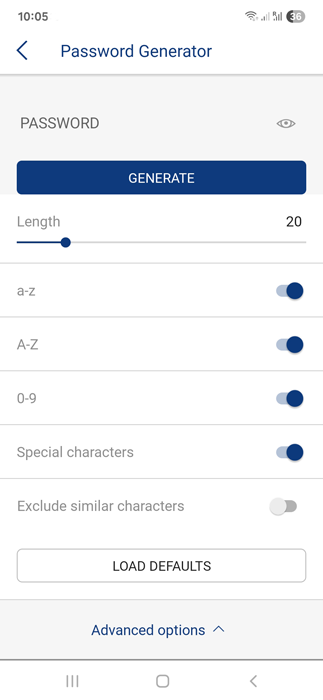
💡Tip: The longer your password is, and the more different characters a password has, the stronger it is. However, some sites do have their own policies and—for example—only allow you to use certain symbols or certain lengths of a new password. Sticky Password lets you adjust the settings via advanced options to meet these requirements.
Password generator history
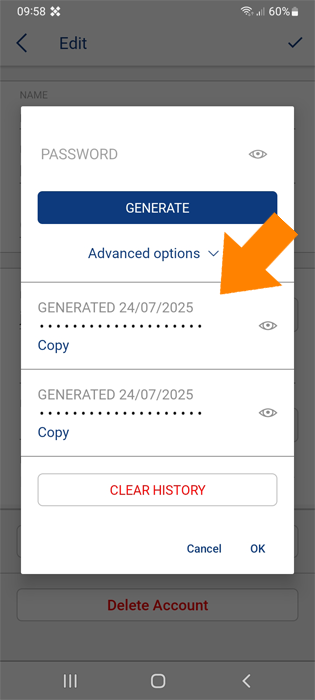
Sticky Password also keeps track of all the passwords you create with the password generator, so you can get them back if you didn’t have a chance to save them. This could help you when you used the password generator on a website but your new password wasn’t saved, or you can’t find it to sign in.
All generated passwords are saved in the password history.
To view the password history for a specific account, follow these steps:
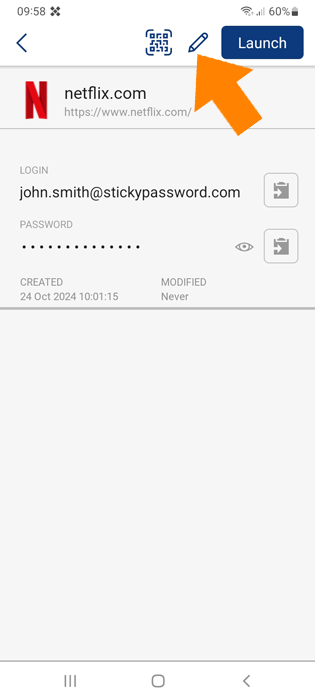
- Open the Sticky Password app and unlock it. Tap Web Accounts, then select the desired account, and tap the pencil icon to edit it.
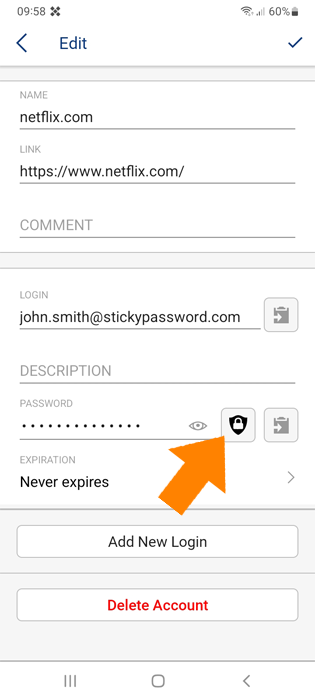
- In the Password section, tap the shield with a lock icon next to the password field.
Simply tap the eye icon to show your password or tap copy to copy a password to the clipboard.
How can we improve the answer?
Send feedbackThank you!
Thank you! We will do our best to make this answer better.
An error has occurred. We apologize for the inconvenience. Please try again.