
How to create and use a passkey
A passkey is created on your device during registration or sign-in and securely stored in Sticky Password. When you return to the website, Sticky Password uses the passkey to sign you in automatically.
In this FAQ, we’ll show you an example of how to create a passkey, and securely store it in Sticky Password, and then use it to sign in to your account in seconds.
How to create a passkey
In general, creating a passkey follows these steps:
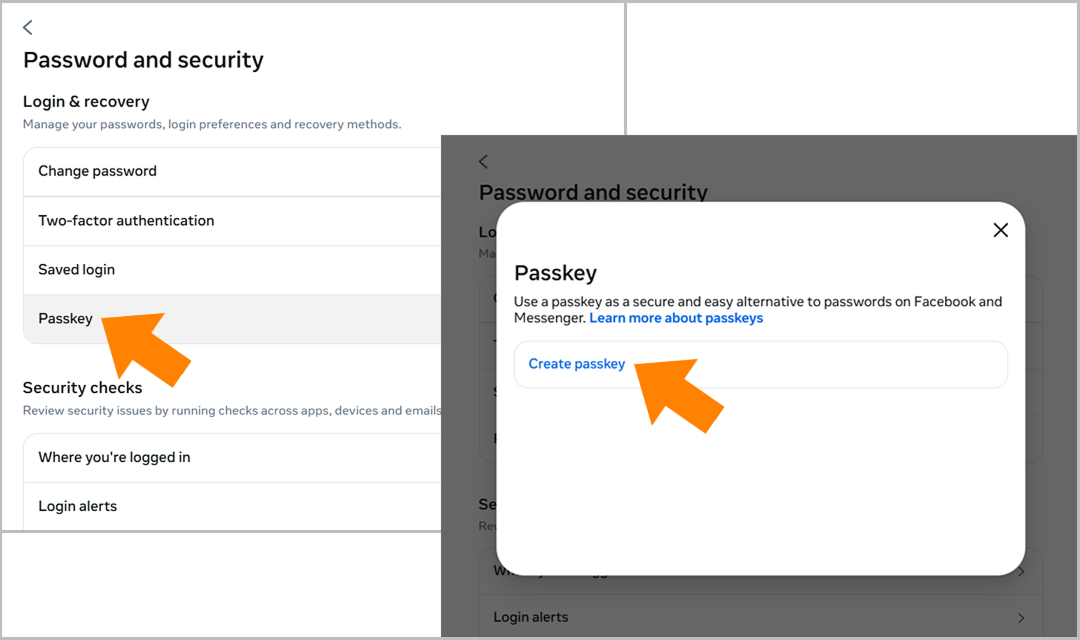
- Sign in to a website or service that supports passkeys.
- Go to the account’s security or sign-in settings
- Choose the option that lets you create a passkey (the wording may vary by site, such as “Create a passkey” or “Use a passkey instead of a password”).
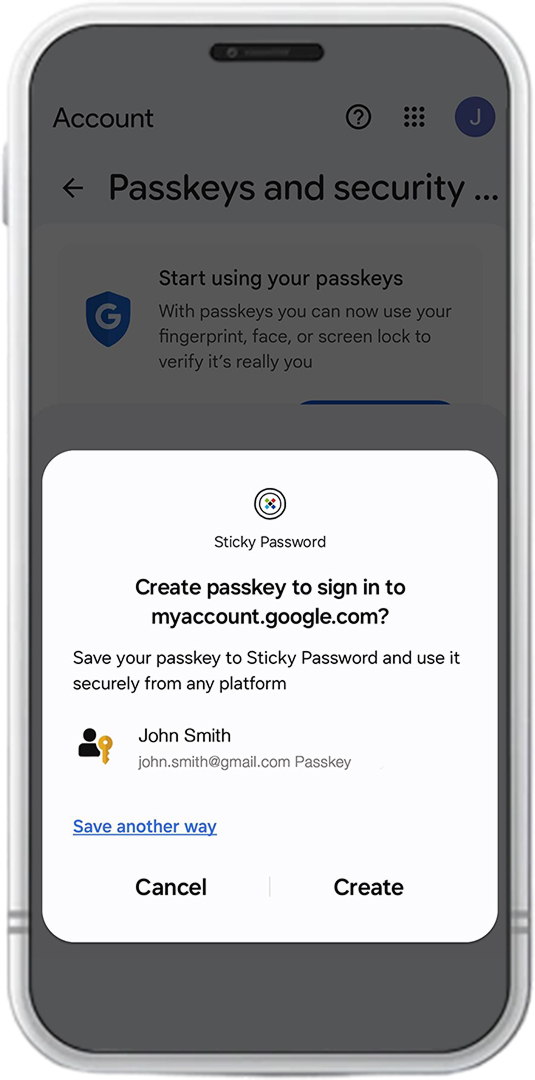
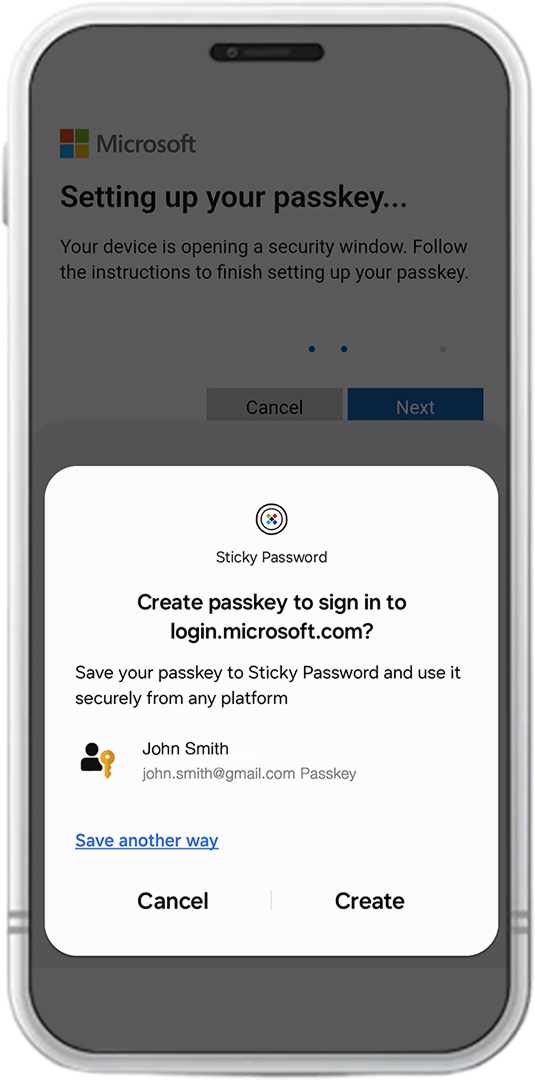
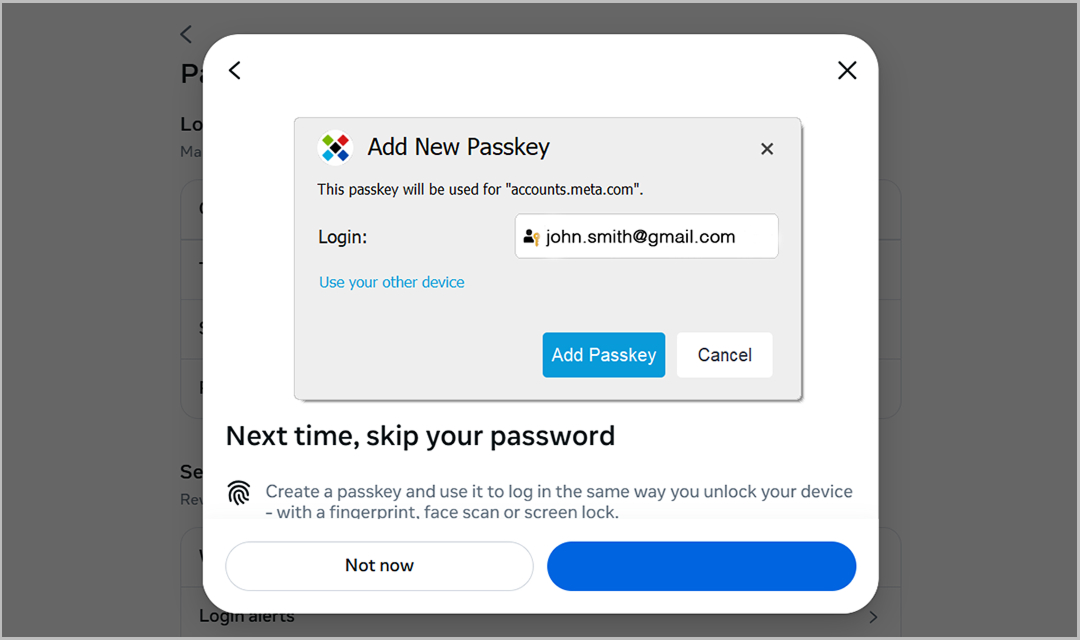
- Allow Sticky Password to save and store the passkey securely in your encrypted vault
- Confirm the action when prompted by your browser or device
Once created, the passkey is ready to use.
Although each website has its own design, the steps are essentially the same everywhere. Below, you can see how the same five steps appear across different services such as Google, Microsoft, and Facebook.
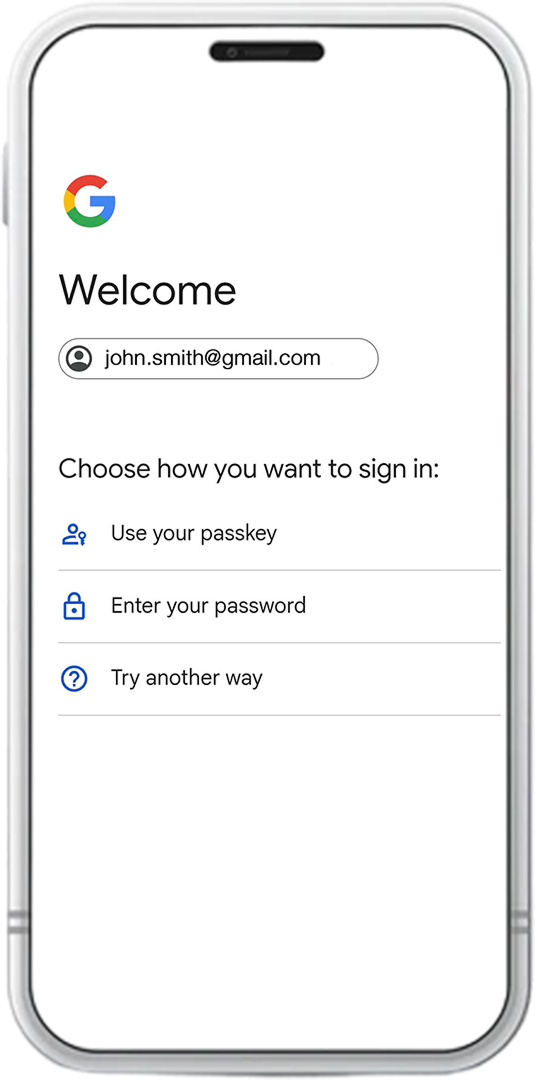 Google
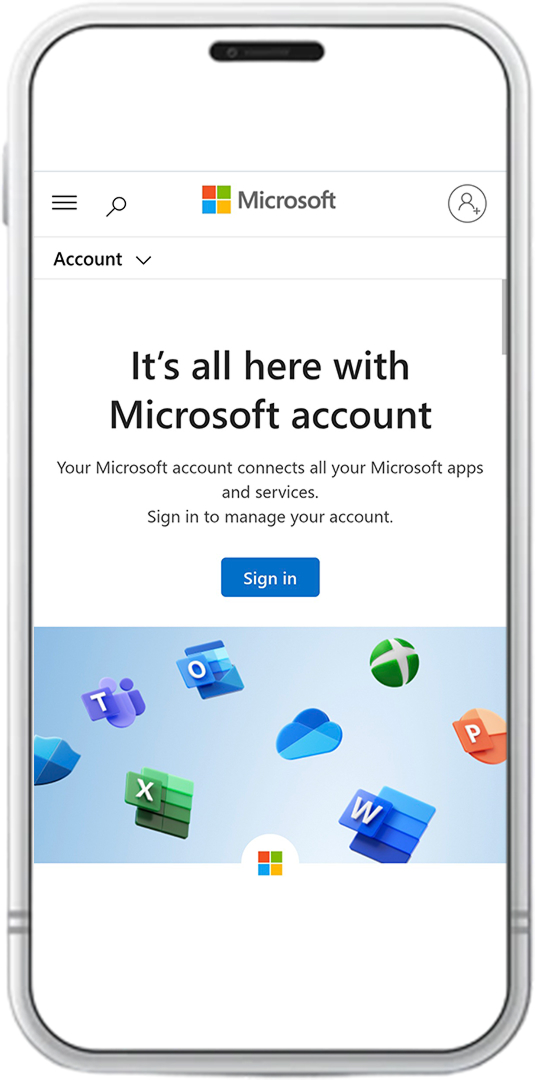 Microsoft
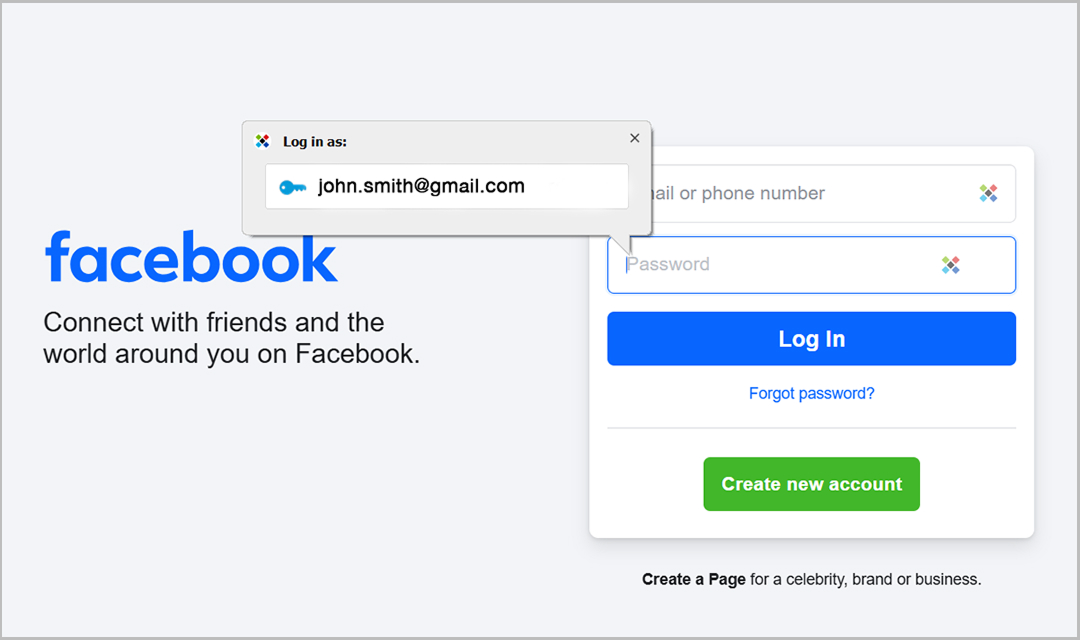 Facebook
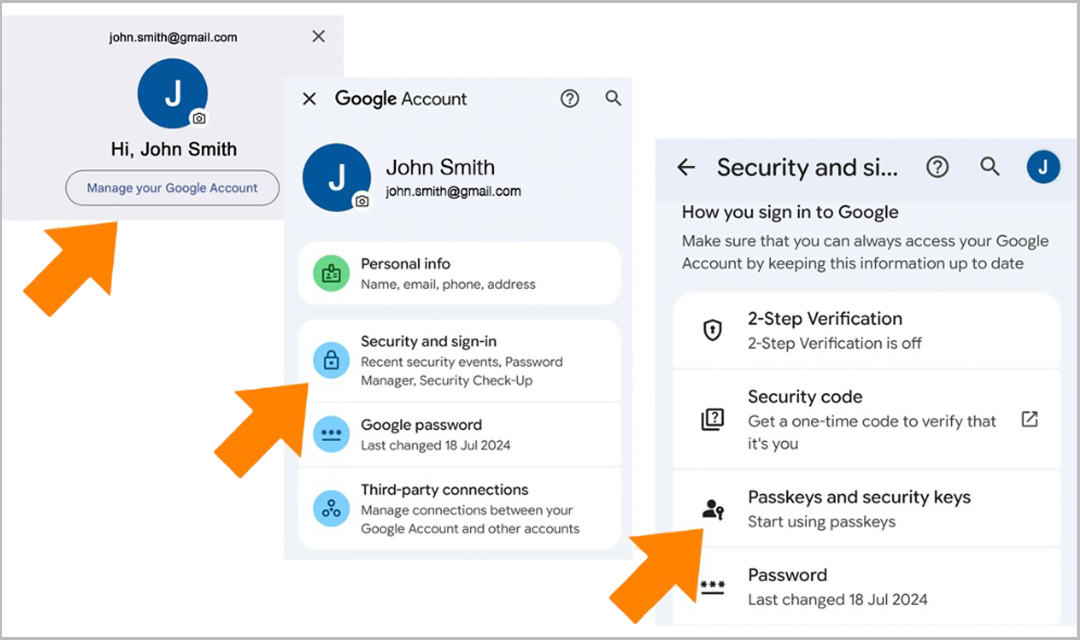 Google
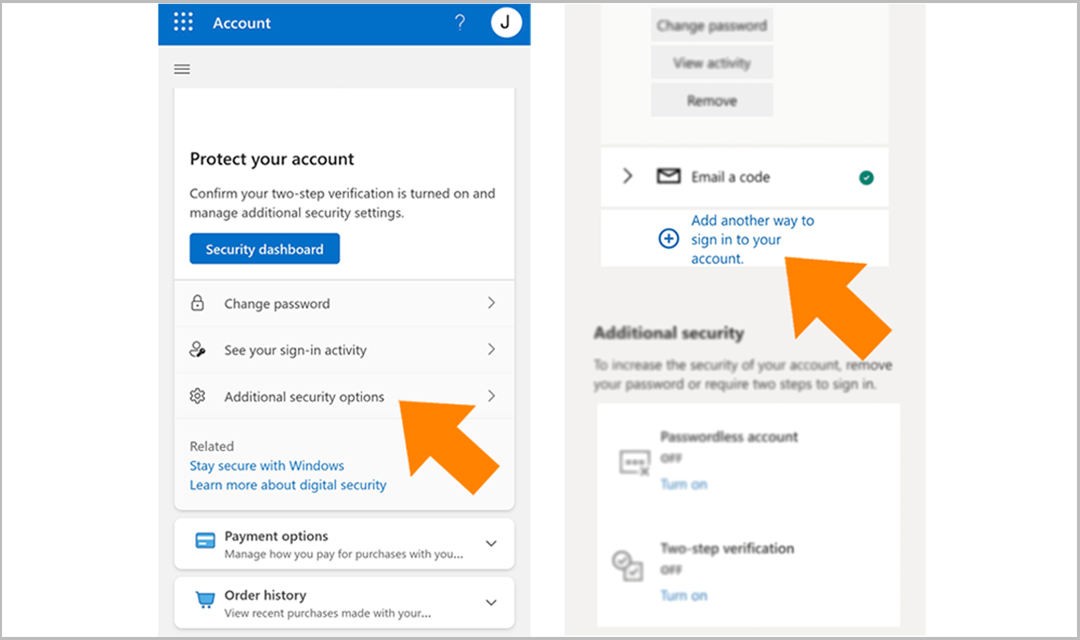 Microsoft
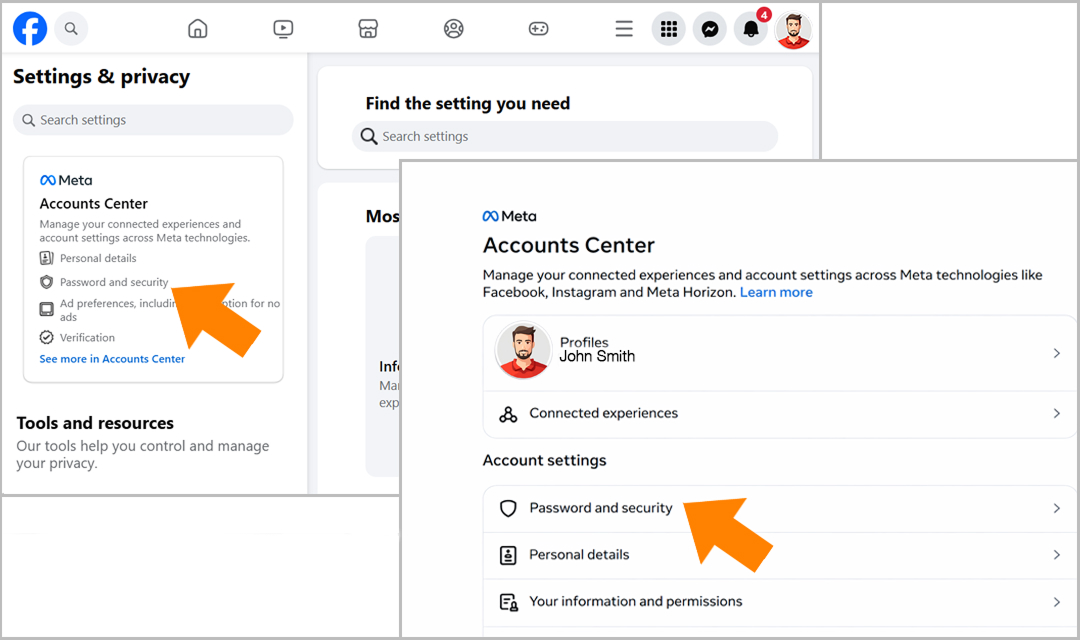 Facebook
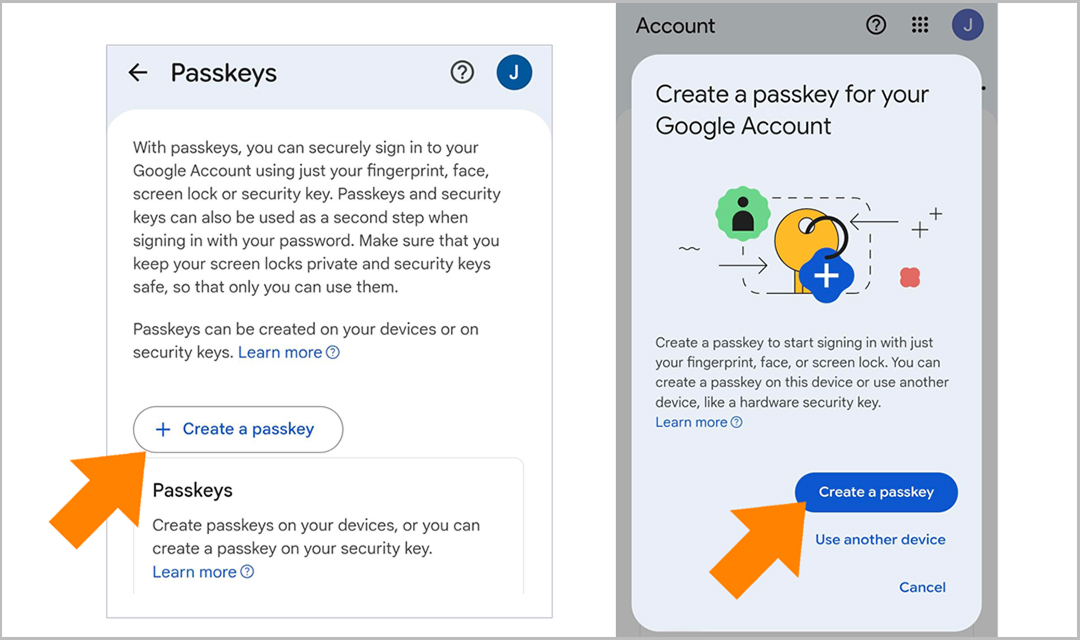 Google
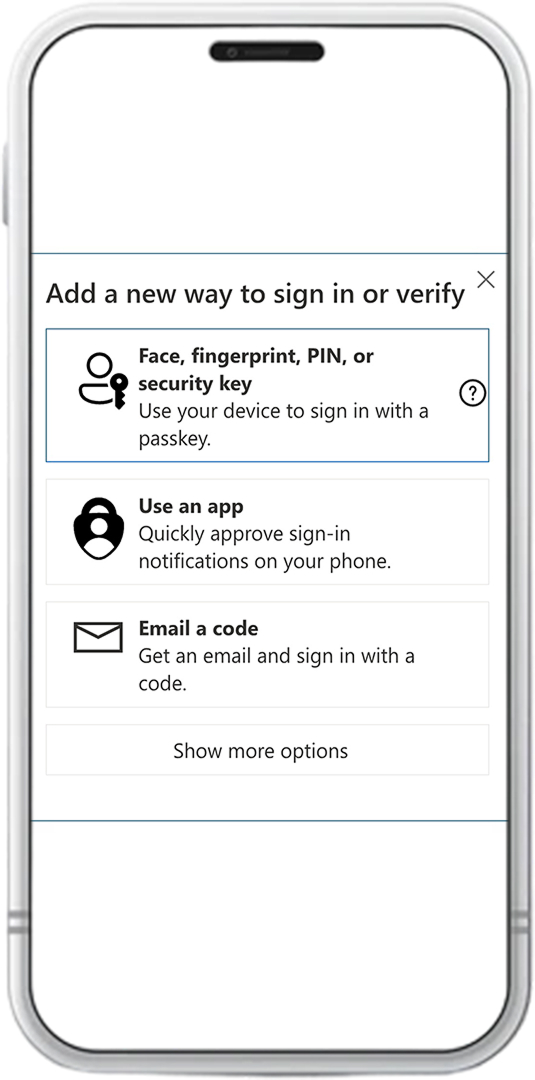 Microsoft
 Facebook
 Google
 Microsoft
 Facebook
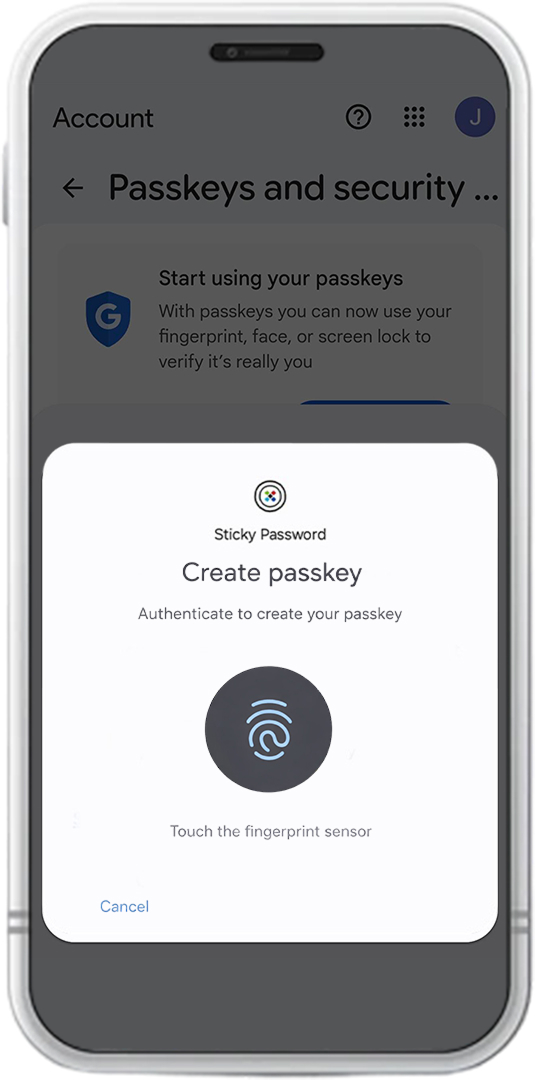 Google
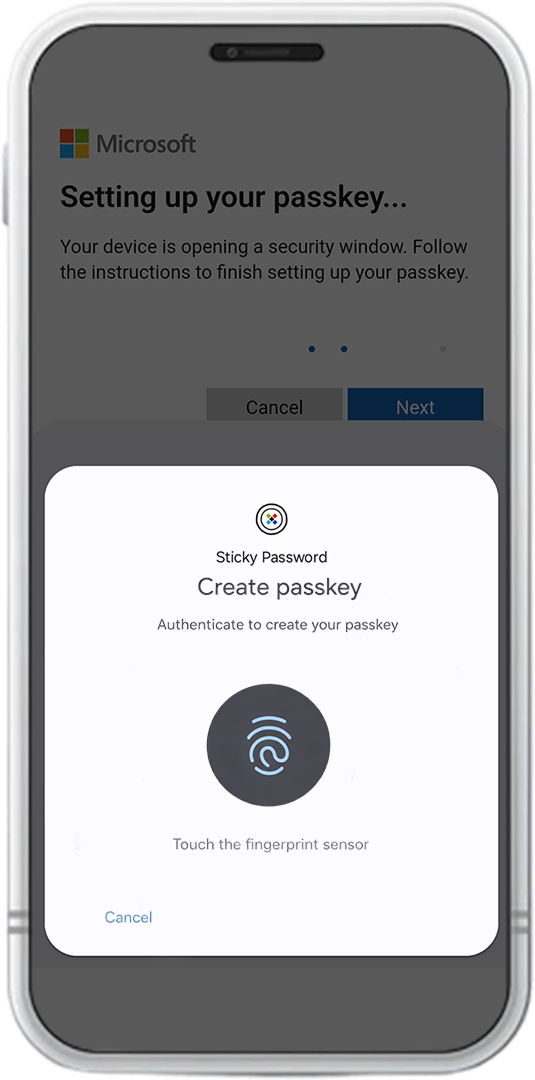 Microsoft
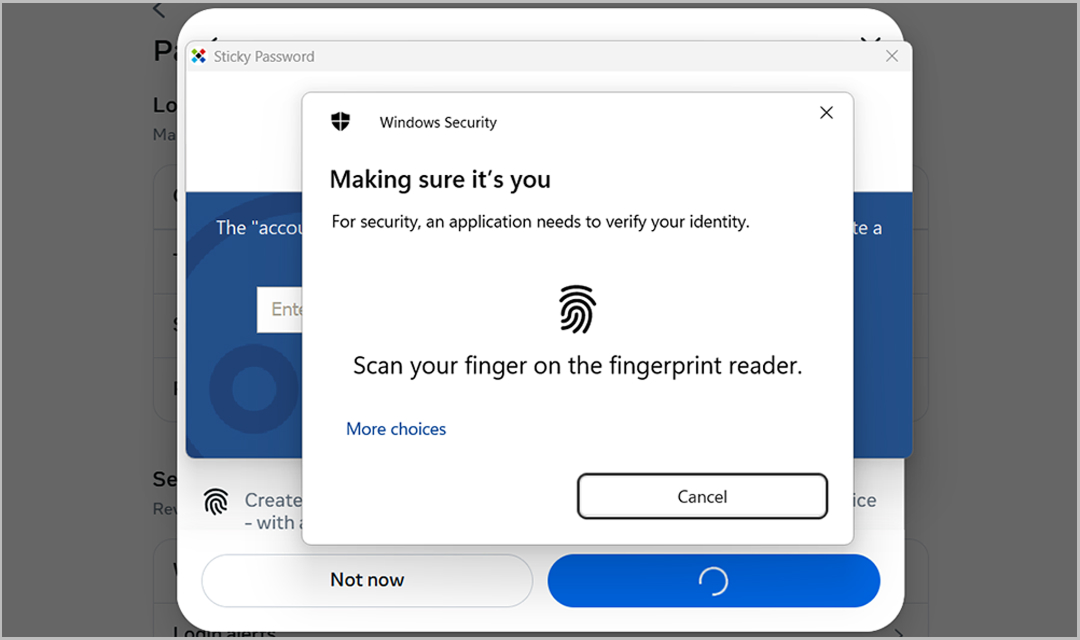 Facebook
How to use a passkey to sign in
After a passkey exists, signing in is straightforward:
- Open the login page of the website you want to sign in to
- Select the option to sign in with a passkey (or similar)
- Sticky Password securely provides the stored passkey and completes the login
- Confirm the sign-in using your device (for example, biometrics or device security)
You’re signed in!
Securely store your passkeys in Sticky Password — and always keep them under your control. The exact steps may vary slightly from site to site, so below we’ll walk through a few real-world examples.
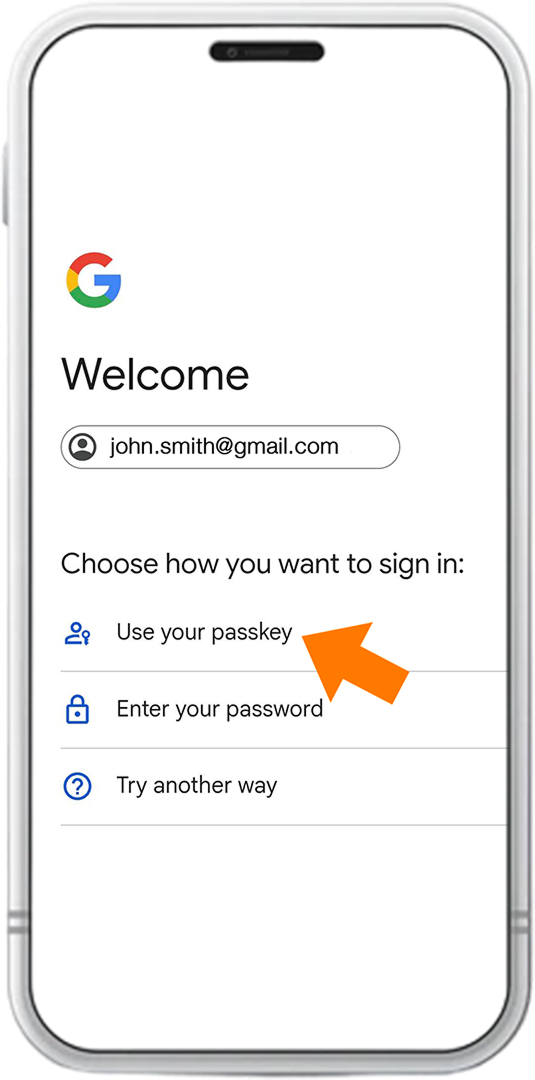 Google
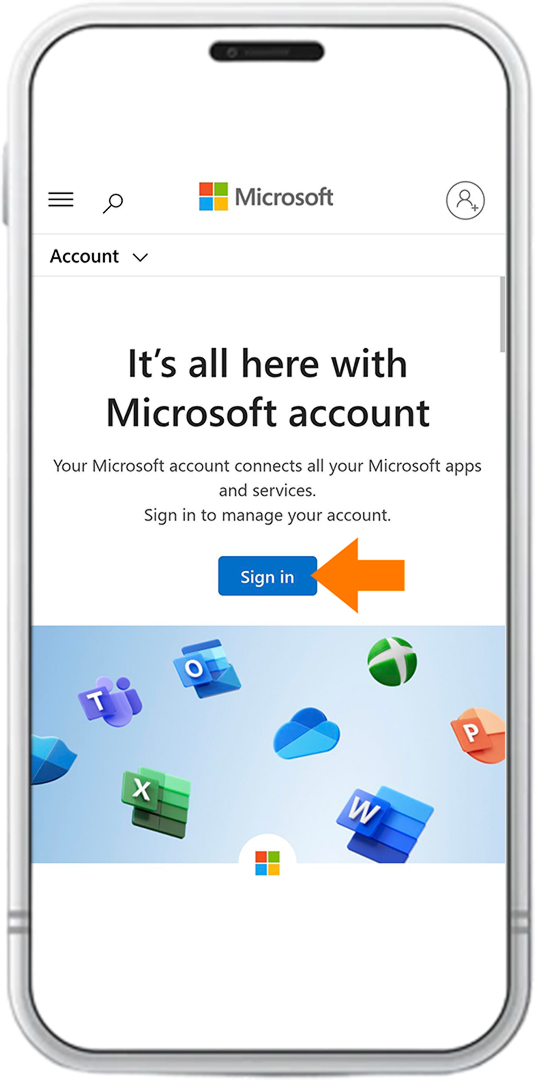 Microsoft
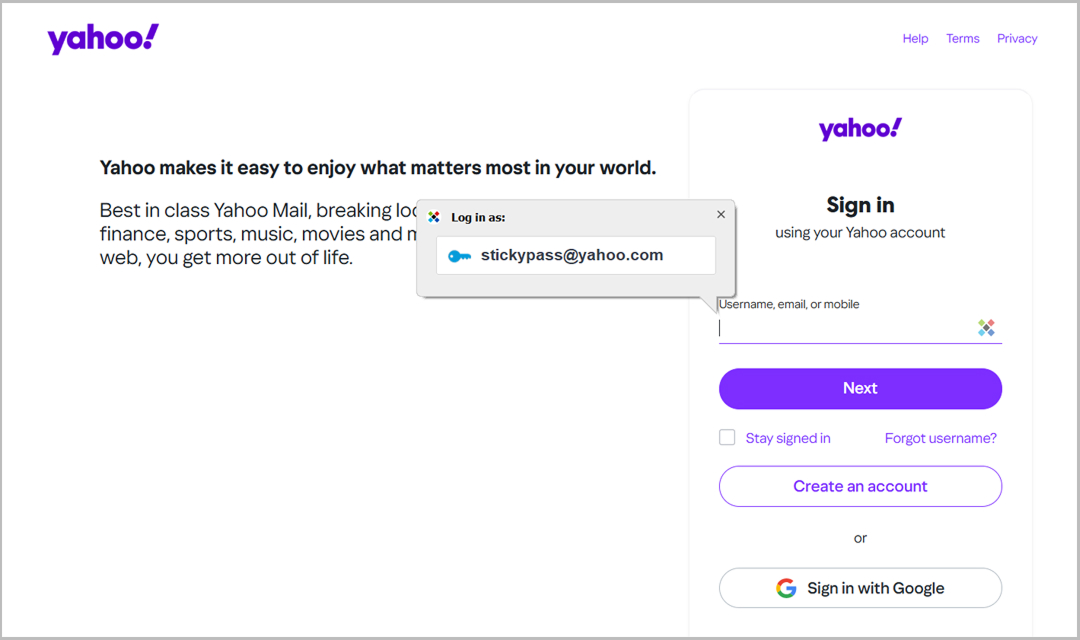 Yahoo
Yahoo
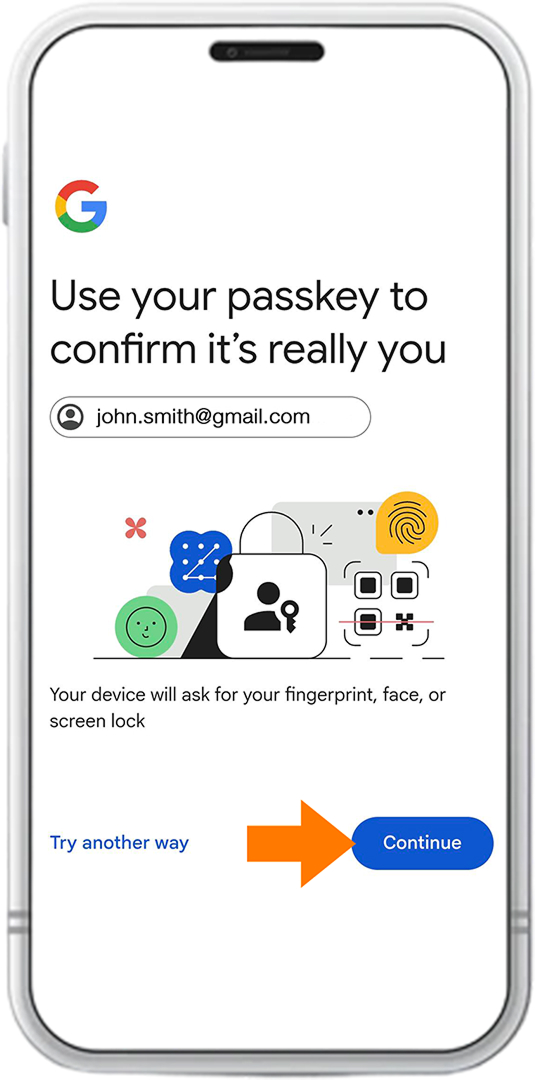 Google
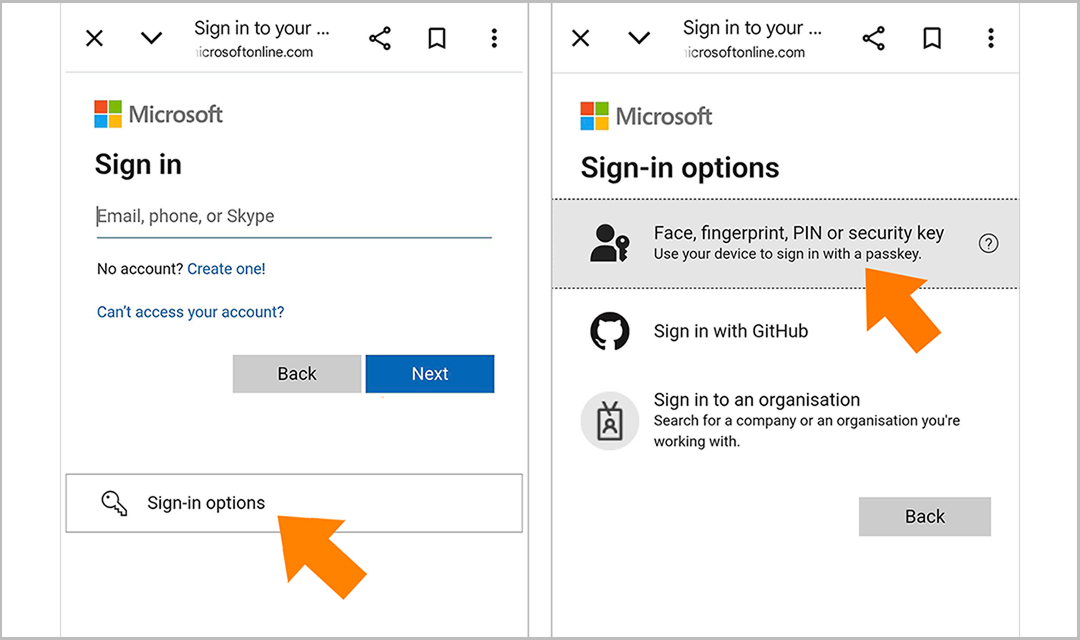 Microsoft
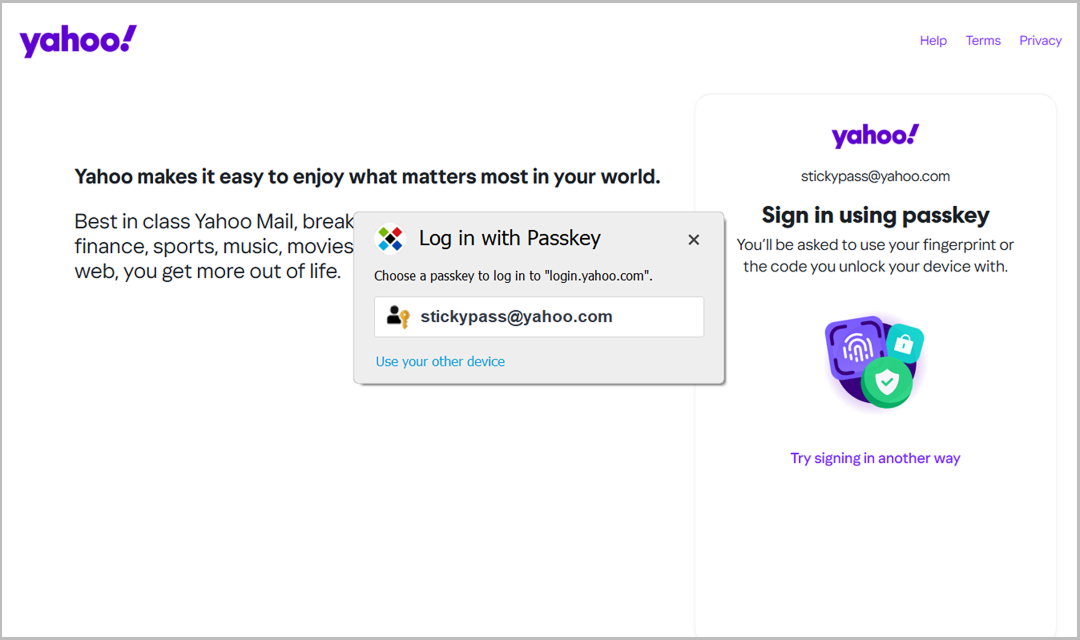 Yahoo
Yahoo
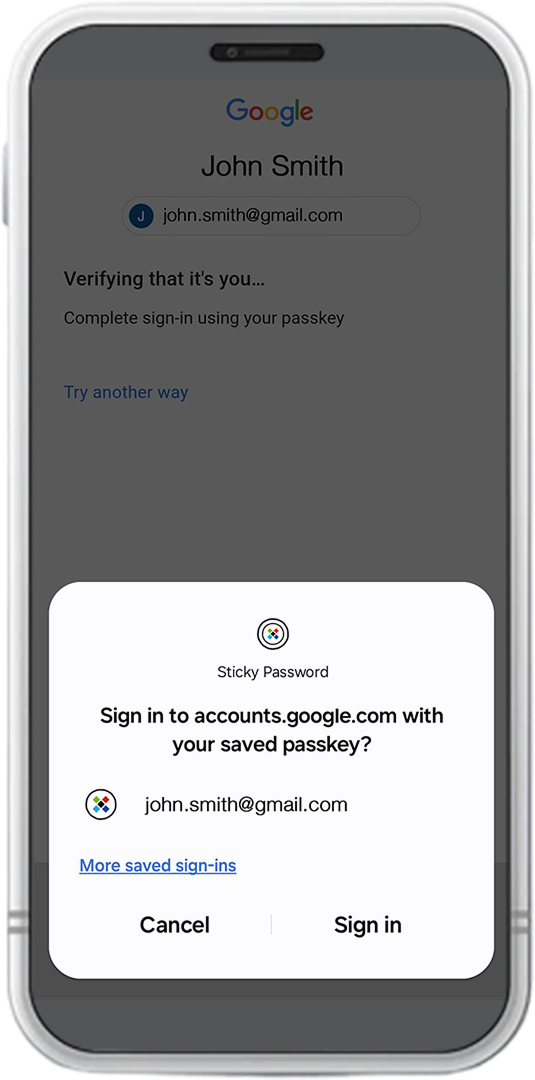 Google
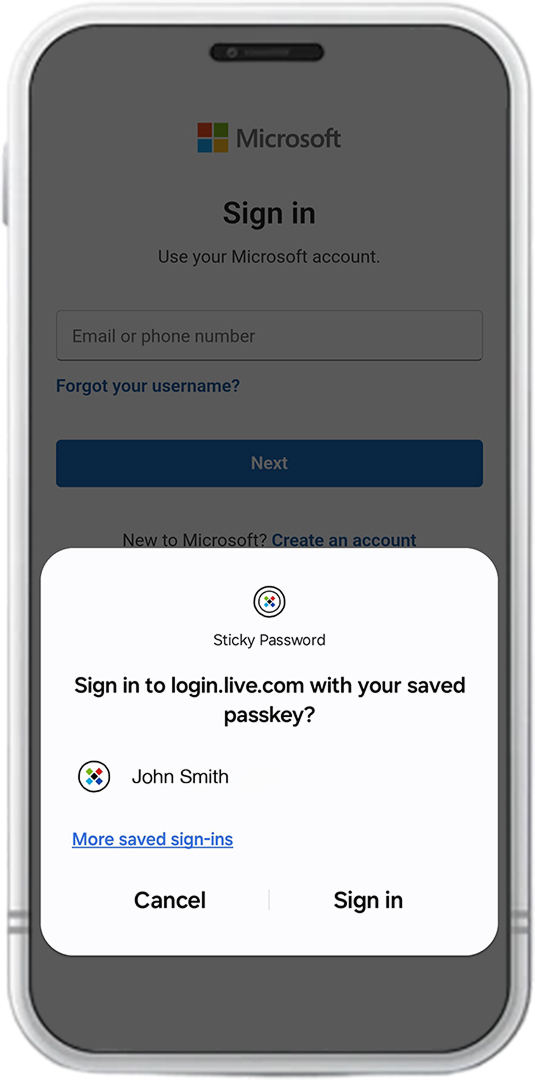 Microsoft
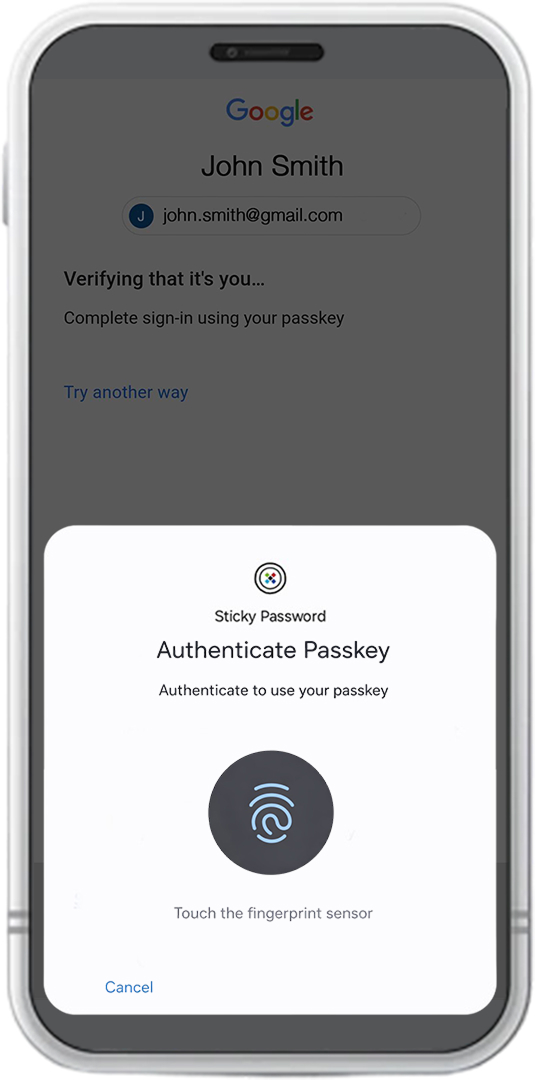 Google
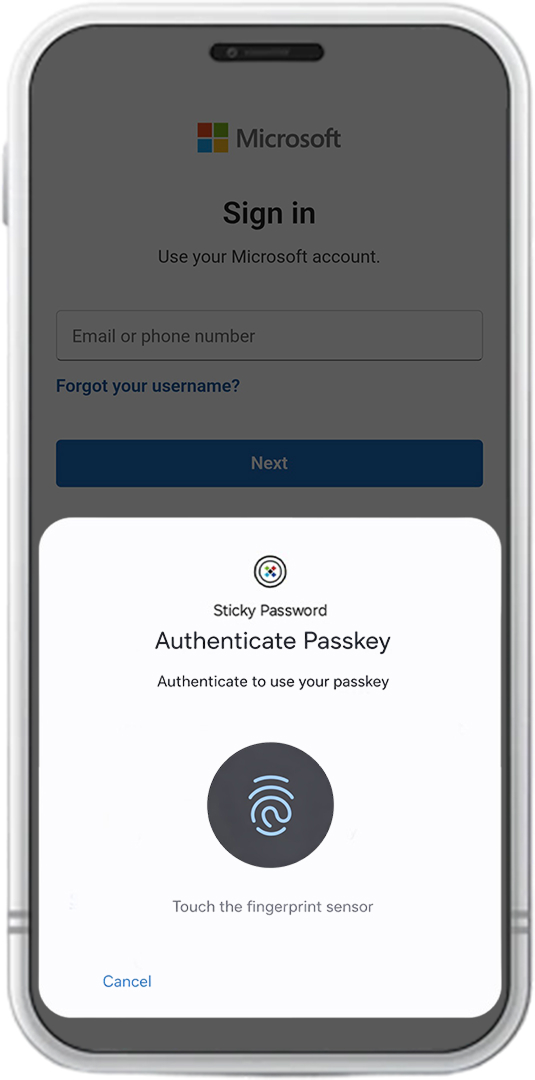 Microsoft
Frequently asked questions
What if I don’t want to use fingerprint authentication?
If biometric authentication (fingerprint, Face ID, Windows Hello, etc.) is enabled in your operating system and a website requires user verification, Sticky Password will ask you to confirm your presence using the method configured in your OS.
Sticky Password doesn’t control this behavior — it follows the security request from the website and the authentication method configured in your operating system.
If you prefer not to use biometrics, you can disable it in your OS settings and use your device password or PIN instead.
How to add a passkey to the vault when the account already exists?
A passkey is created and stored when you register it on a website. If the account already exists in your Sticky Password vault, it will be saved to the same account entry automatically. In this case, you will have both a password and a passkey saved for the account.
Can I import the existing passkey to Sticky Password?
If the website already has a passkey created earlier (for example on another device or in another password manager), it cannot be imported into Sticky Password. In that case, you need to add a new passkey for the site and save it in Sticky Password when prompted.
Are passkeys really more secure than passwords?
Yes. They are generally more secure because they do not rely on reusable credentials, which makes them resistant to phishing and data breaches.
For a detailed explanation of passkey security and whether they are safer than passwords, see our guide.
How do I use a passkey on a desktop computer that doesn't have a camera or fingerprint reader?
Biometrics are not required to use passkeys. They only serve as a convenient way to verify it's you. If your computer doesn’t have a fingerprint reader or camera, then Sticky Password will usually ask you to verify using another method, such as PIN code or Master Password.
Are passkeys synced between my devices like passwords?
Yes. They are synchronized between your devices in Sticky Password, so you can use them on your laptop, phone, or any other device where you are signed in to your account.
Can I use the same passkey for all sites?
No. A unique passkey is created for each website or account. This improves security because a passkey created for one site cannot be used on another.
What if my fingerprint doesn’t scan or can’t be recognized?
Your fingerprint is not the only way to verify it's really you. If it doesn’t work, you can verify using your Master Password or your device PIN.