How to import your passwords from Chrome on Windows (including bookmarks)
Sticky Password can import your passwords from supported browsers. Here’s how to import your Chrome passwords (along with bookmarks, optionally) into Sticky Password in a few simple steps.
First, export your passwords from Chrome Password Manager. The file will be downloaded automatically in CSV format and is ready for import.
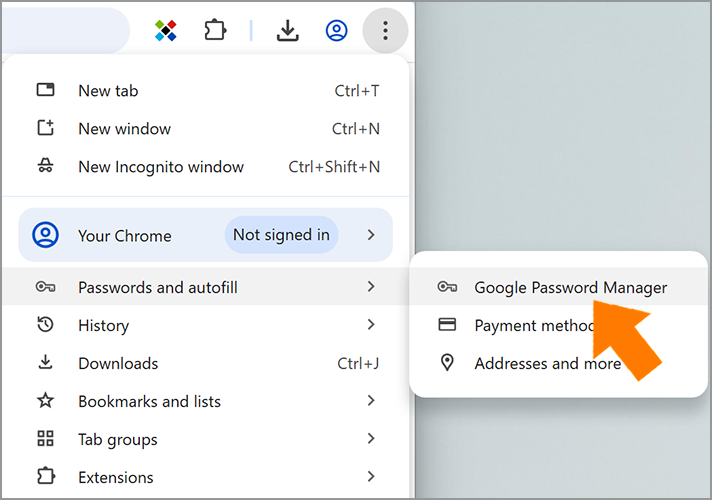
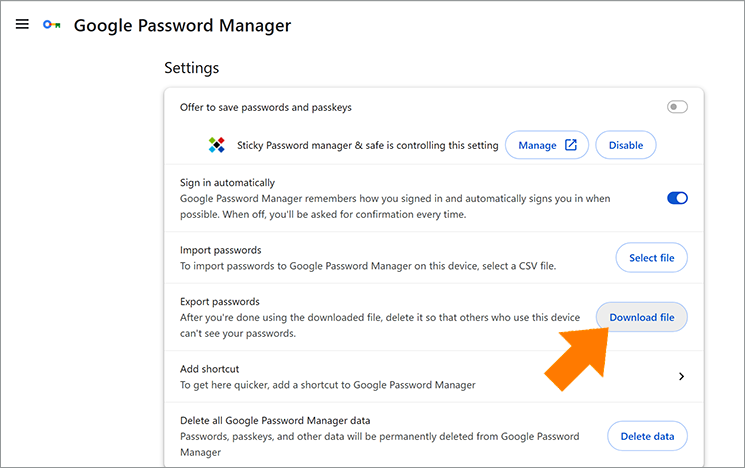
- Open Chrome. Go to Settings -> Passwords and Autofill -> Google Password Manager.
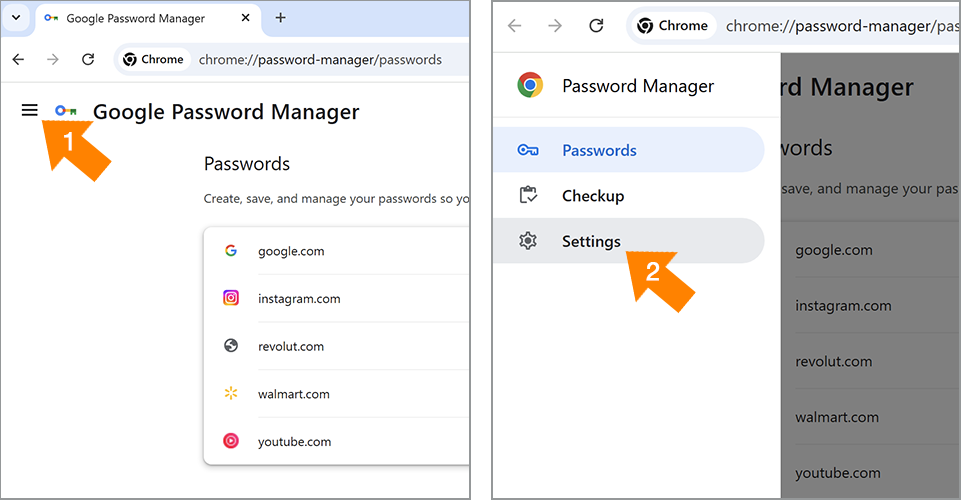
- Click the Menu button in the upper-left corner, then select Settings.
- Click Download file next to the Export passwords field.
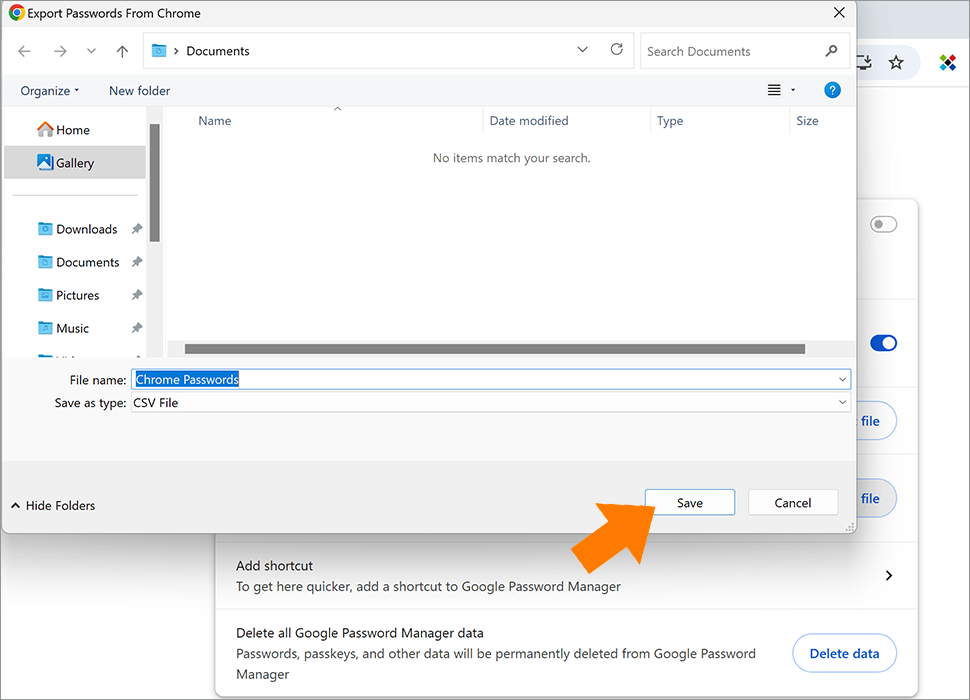
- Choose the folder where you want to save the CSV file.
💡 Note: For security reasons, we strongly recommend deleting the CSV file you exported from Chrome after the import is complete to prevent any potential unauthorized access to your passwords.
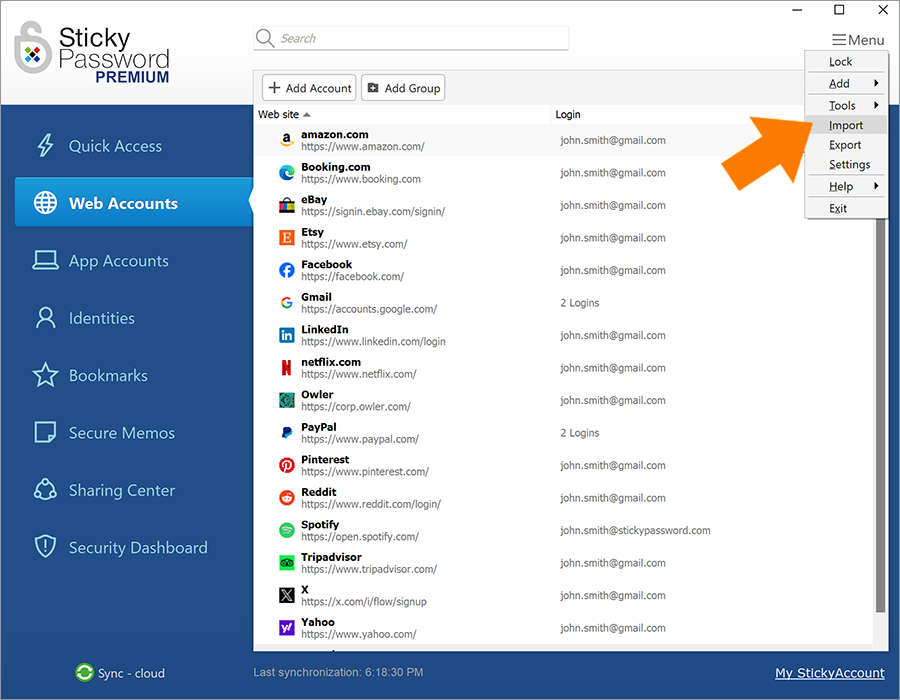
- Open the Sticky Password application. Go to Menu -> Import.
- Click Supported browsers.
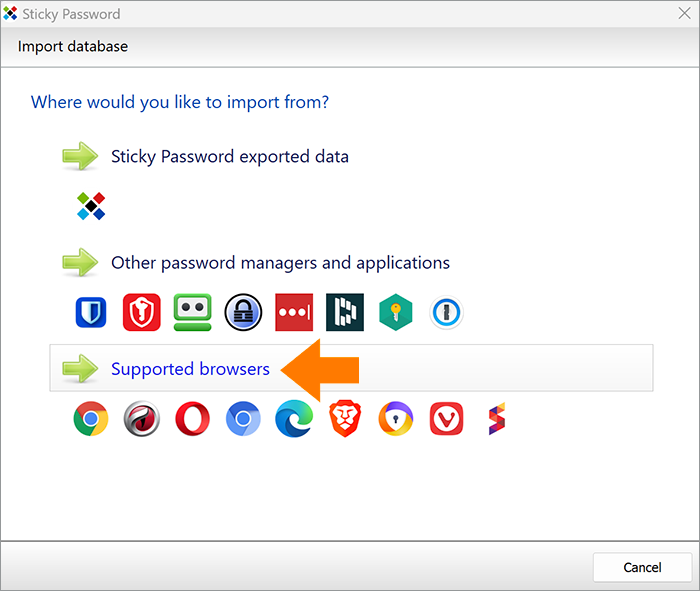
- Choose Google Chrome in the list of supported browsers and click Next.
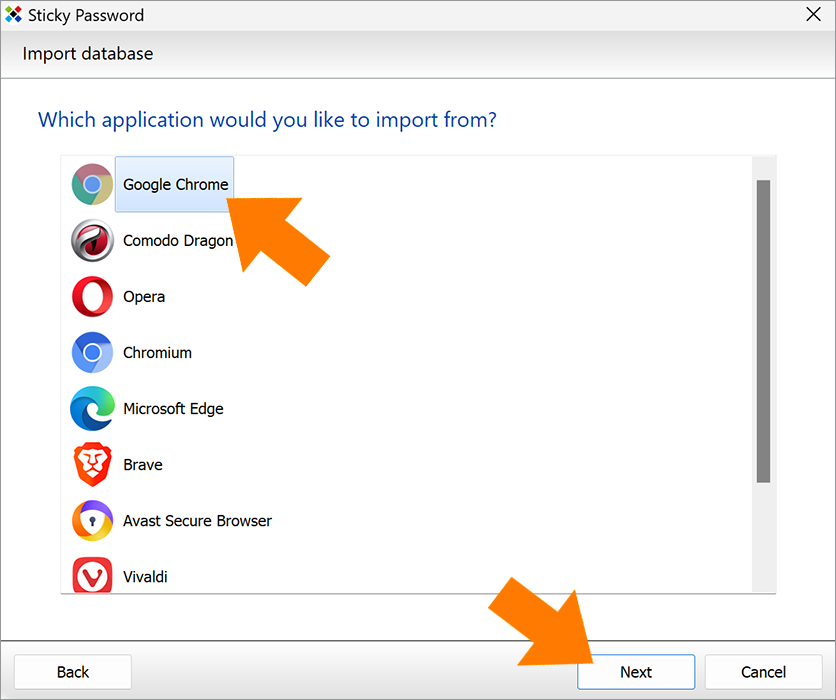
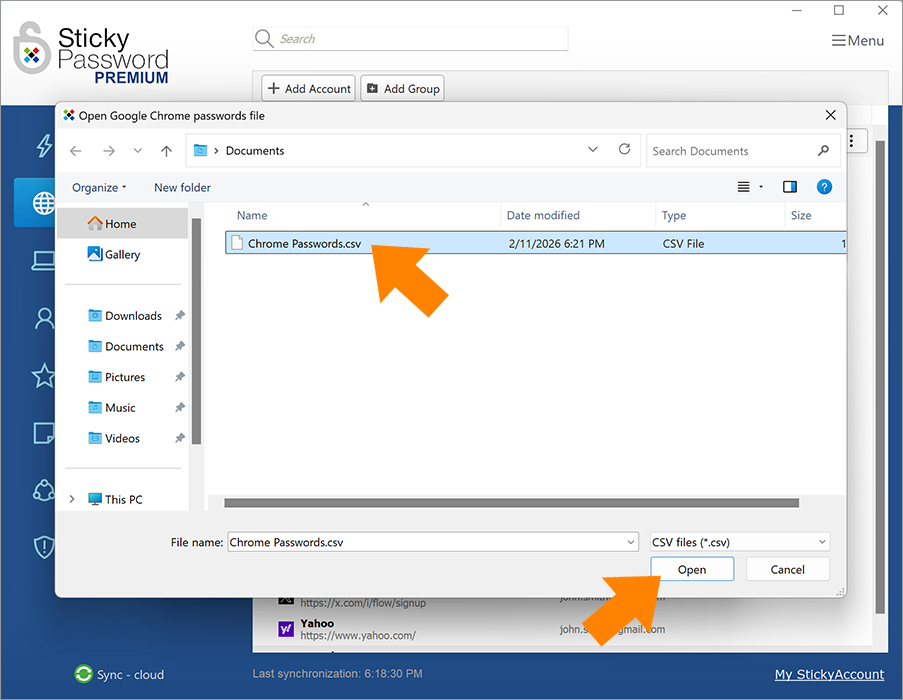
- Select the CSV file you previously saved and click Open.
💡 Note: When importing from Google Chrome, Sticky Password reads passwords from the exported CSV file and detects bookmarks directly from your Chrome browser. You can choose whether to import passwords, bookmarks, or both.
Important: Bookmarks are detected only if Google Chrome is installed on the same computer and its profile is accessible.
If you import the CSV file on a computer where Chrome is not installed, bookmarks will not be available for import.
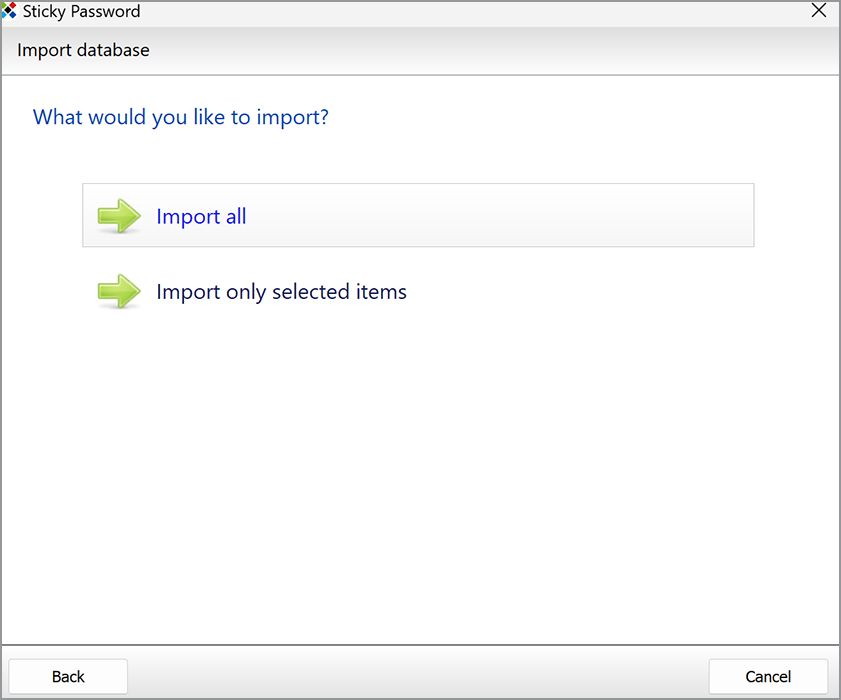
- Click Import all or Import only selected items, depending on your preference.
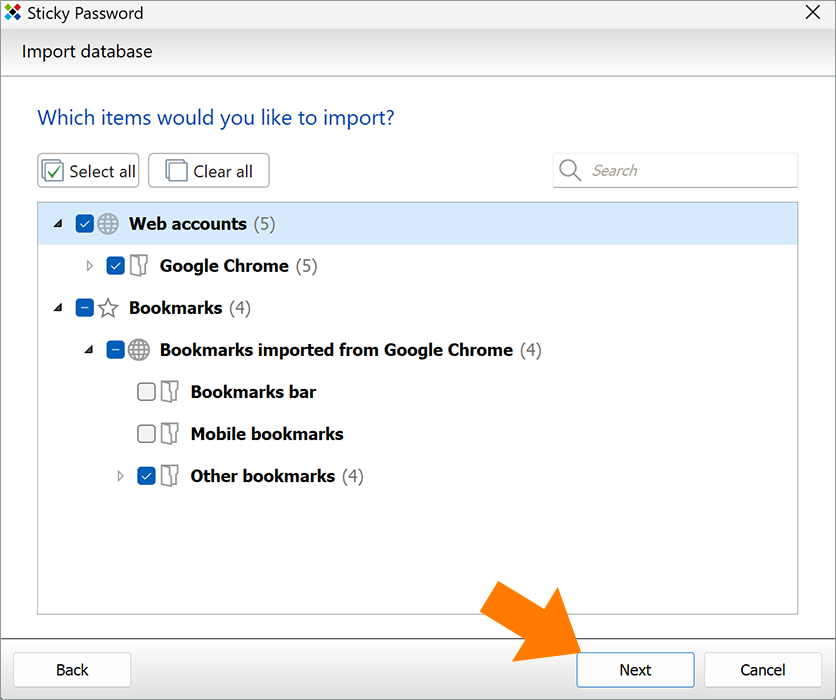
When you click Import only selected items, select the checkboxes next to the items you want to import, as shown in the image below.
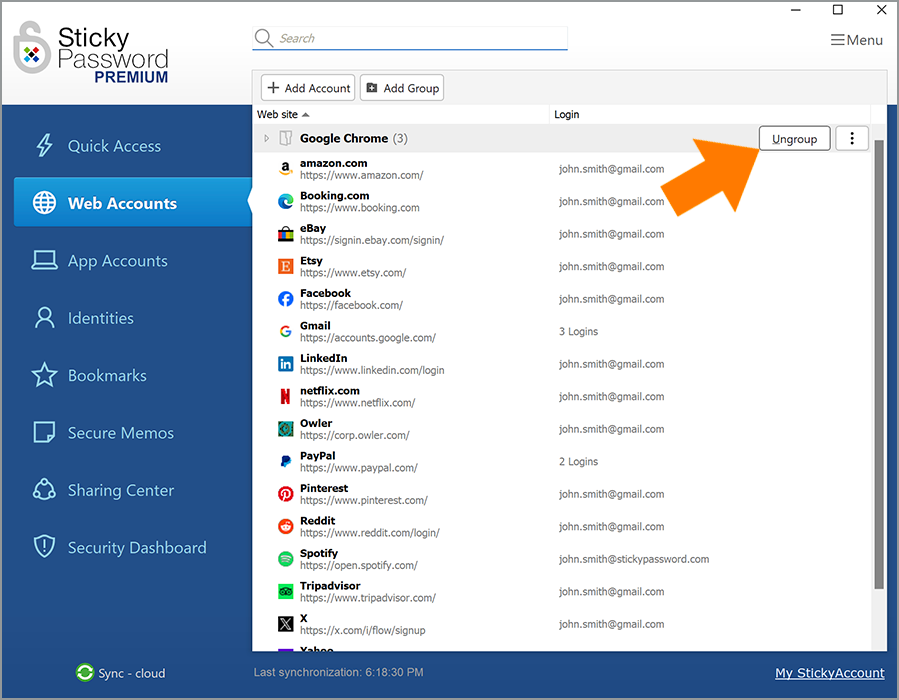
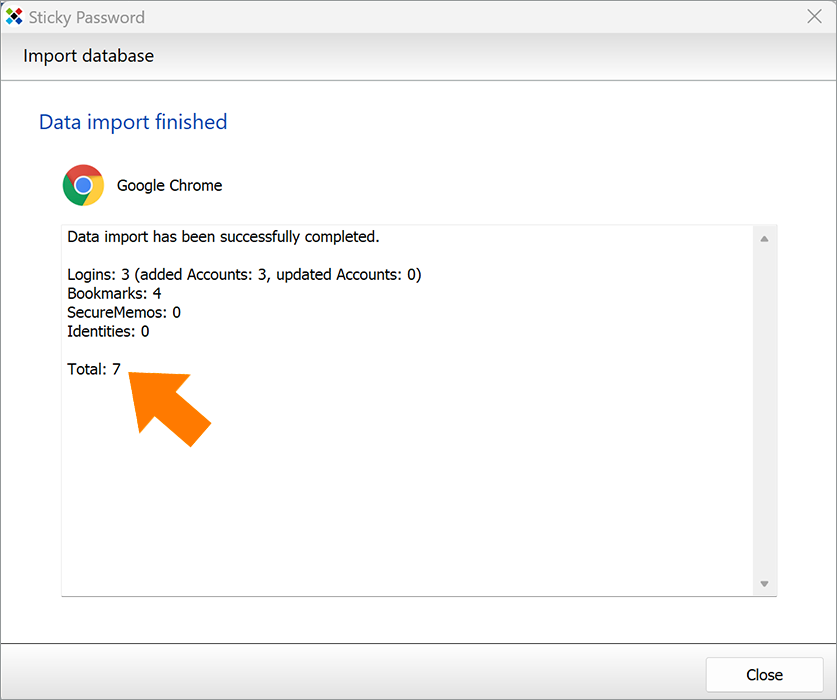
That’s it — data import finished. The Sticky Password app window will display the number of imported accounts.
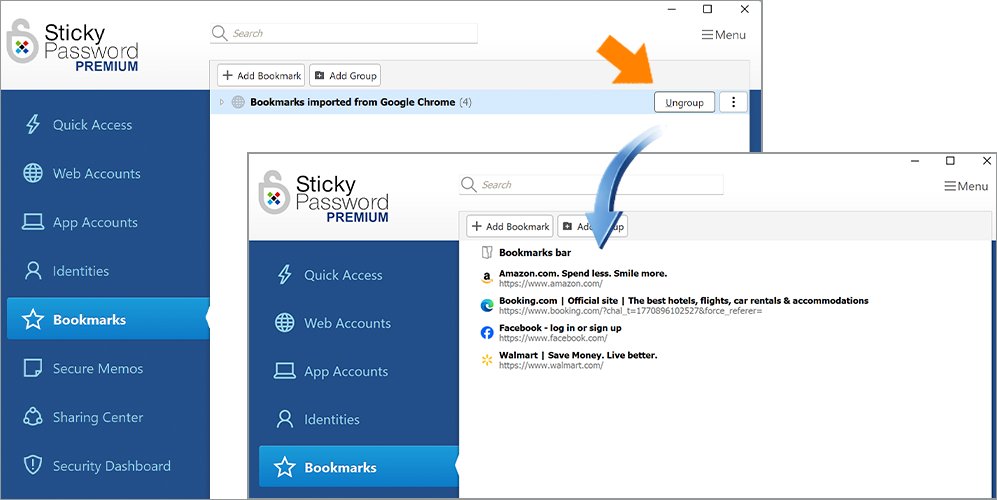
💡 Note: You can keep the imported items in a separate folder or ungroup them, depending on your preference.