
How to import your passwords from KeePass on Windows
Sticky Password makes it easy to bring in your saved passwords from various password managers. Here’s how you can transfer your KeePass credentials into Sticky Password in just a few simple steps.
Exporting passwords from KeePass
First, export your data from KeePass. You can export your data on computers only — this option isn’t available on mobile devices. Be sure to save the export in CSV format so it can be imported correctly.
Open the KeePass application.

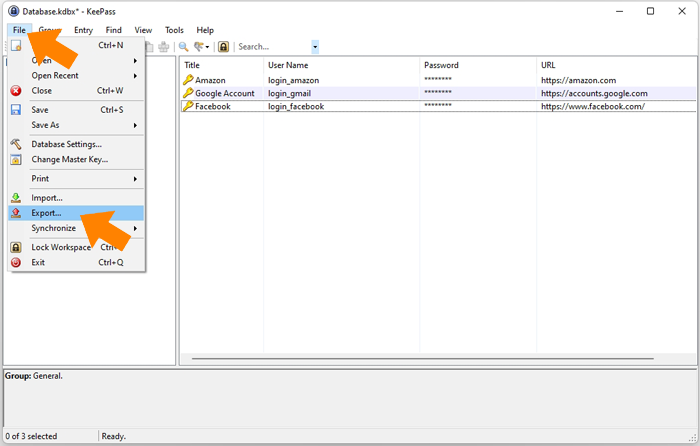
Go to File → Export.
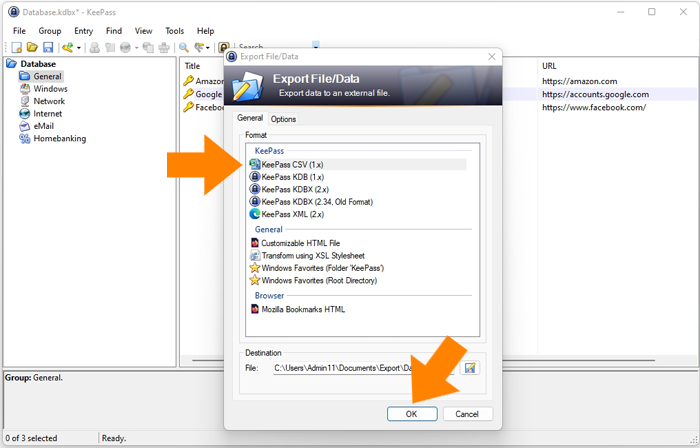
Select KeePass CSV (1.x), choose the destination folder on your computer, and click OK.
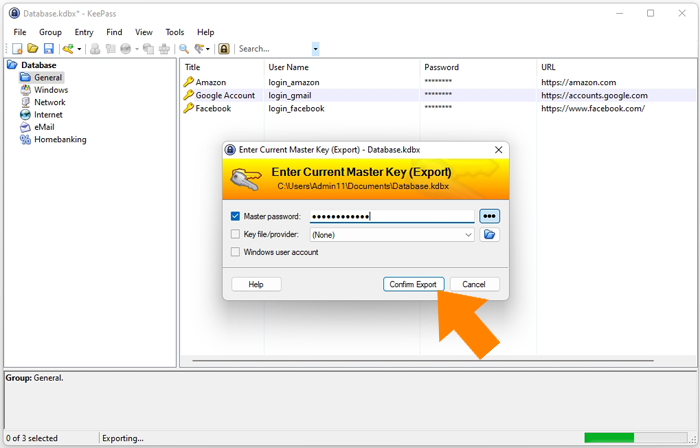
Enter your Master Key when prompted, then click Confirm Export.
💡 Note: KeePass exports data in CSV, which is not encrypted. To protect your information, delete the file right after completing the import—Sticky Password will keep everything encrypted.
That’s it! Your KeePass data is now exported and ready to be imported into Sticky Password. Just follow the steps below.
Importing passwords into Sticky Password
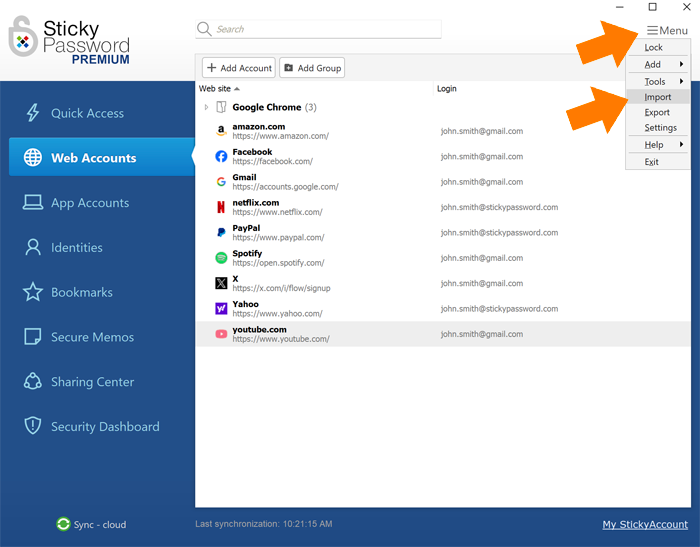
Launch the Sticky Password app and go to Menu → Import.
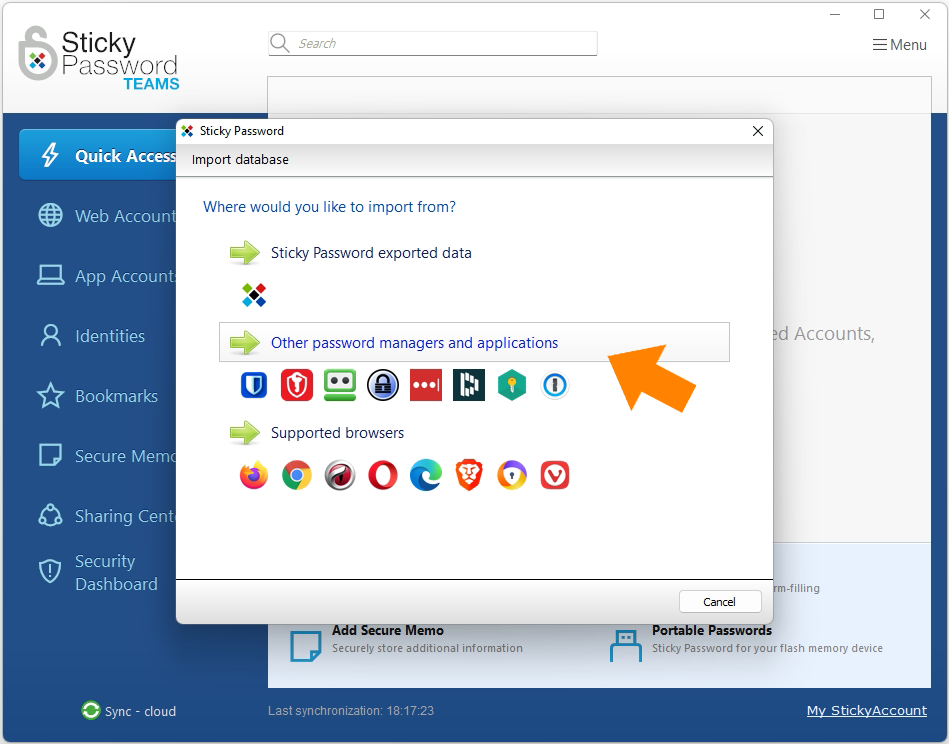
Select Other password managers and applications.
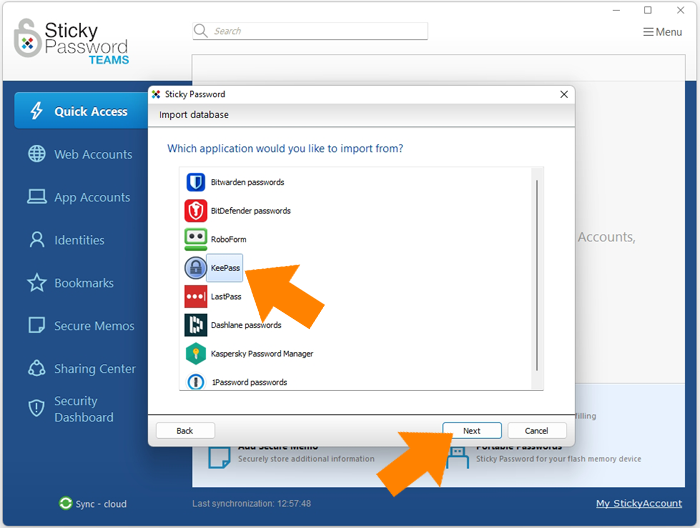
Select KeePass and click Next.
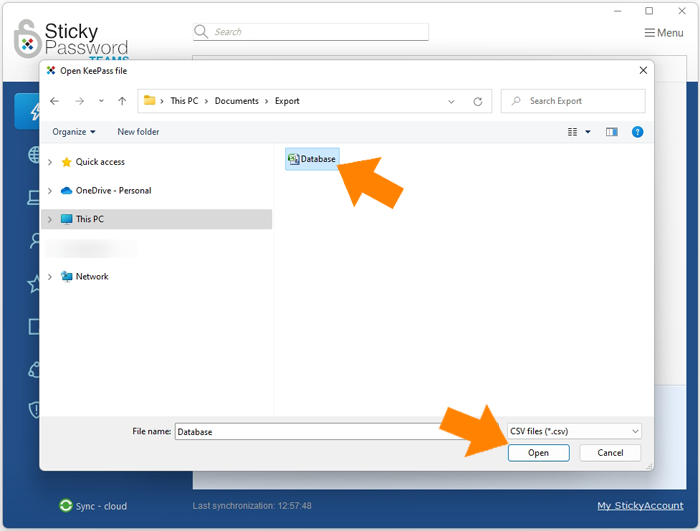
Select the previously exported KeePass file, then click Open.
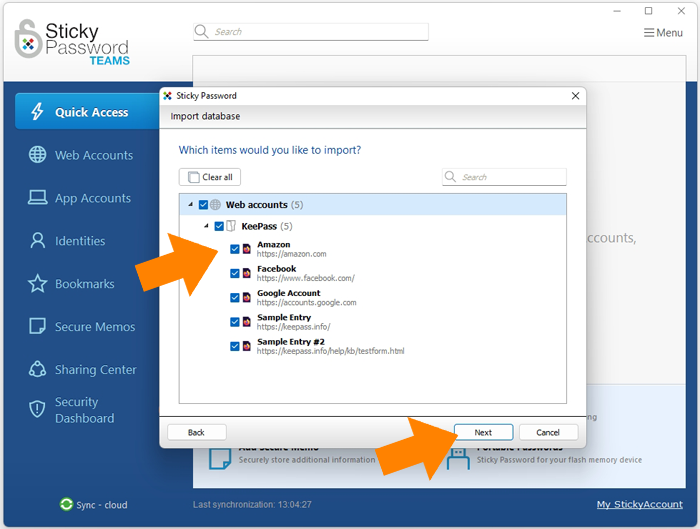
Based on your choice, click either Import all or Import only selected items.
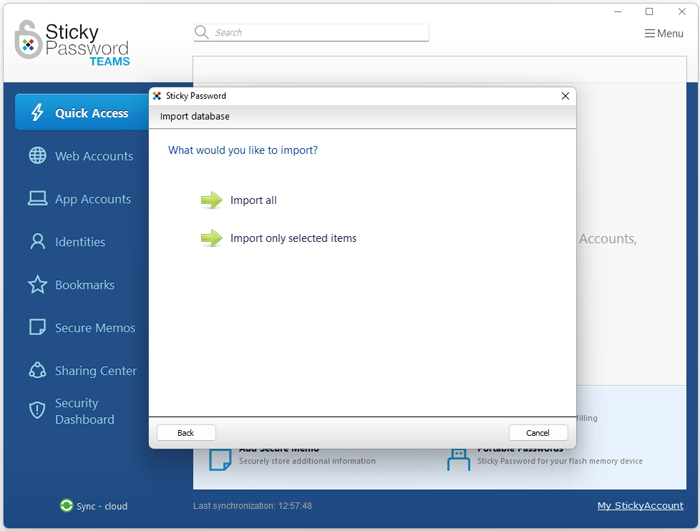
💡 Note: To import only selected items, mark the checkboxes next to the entries you want and click Next.
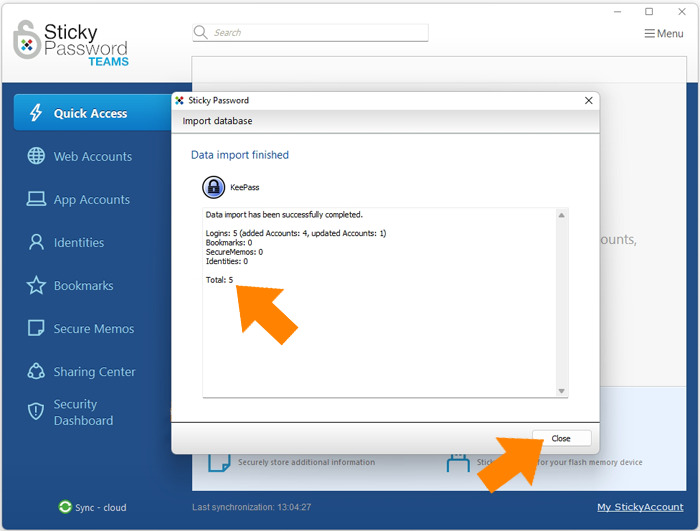
Data import is complete. The number of imported accounts is shown here. Click Close.
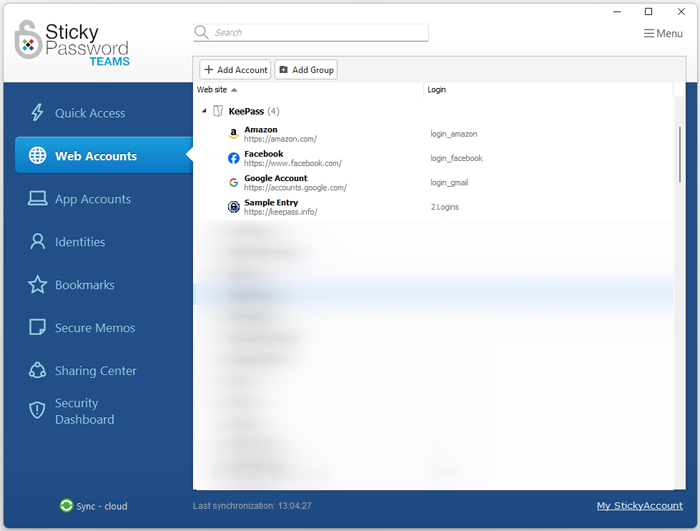
Congratulations! Your passwords from KeePass have been successfully imported into the Sticky Password database and are ready to use. For security, don’t forget to delete the CSV file.