
How to fix Local Sync problems on Mac
If Local Sync cannot find your other device or the synchronization does not start, follow these steps on your Mac. In most cases, the problem is caused by a network setting or a permission that prevents the devices from communicating.
Local Sync transfers your encrypted Sticky Password database directly between your devices over your Wi‑Fi or wired network. Your encrypted data does not leave your local network.
Start with these checks
- Make sure both devices use the same StickyAccount (the same StickyID).
- Make sure your Sticky Password Premium license is active.
- Connect both devices to the same Wi‑Fi or wired network. Avoid guest Wi‑Fi, because guest networks often prevent connected devices from seeing each other.
- Open and unlock Sticky Password on both devices. Keep the app open while you try to sync.
- On your Mac, choose Sticky Password in the menu bar, open Preferences, click Synchronization, and select Wi‑Fi and other local networks.
- Make sure Local Sync is also selected on the other device.
- Check that the date and time are correct on both devices. If possible, set them automatically.
Try the sync again. If the Mac cannot find the other device, start Local Sync from the other device instead.
If this is the first sync between the devices, enter the PIN shown by Sticky Password on the other device within 30 seconds. If the PIN expires, start the sync again to get a new one.
Allow Sticky Password to access your local network
Recent versions of macOS ask for permission before an app can find devices on your local network.
- Choose the Apple menu > System Settings.
- Click Privacy & Security in the sidebar.
- Click Local Network.
- Turn on local network access for Sticky Password.
- Quit and reopen Sticky Password, then try Local Sync again.
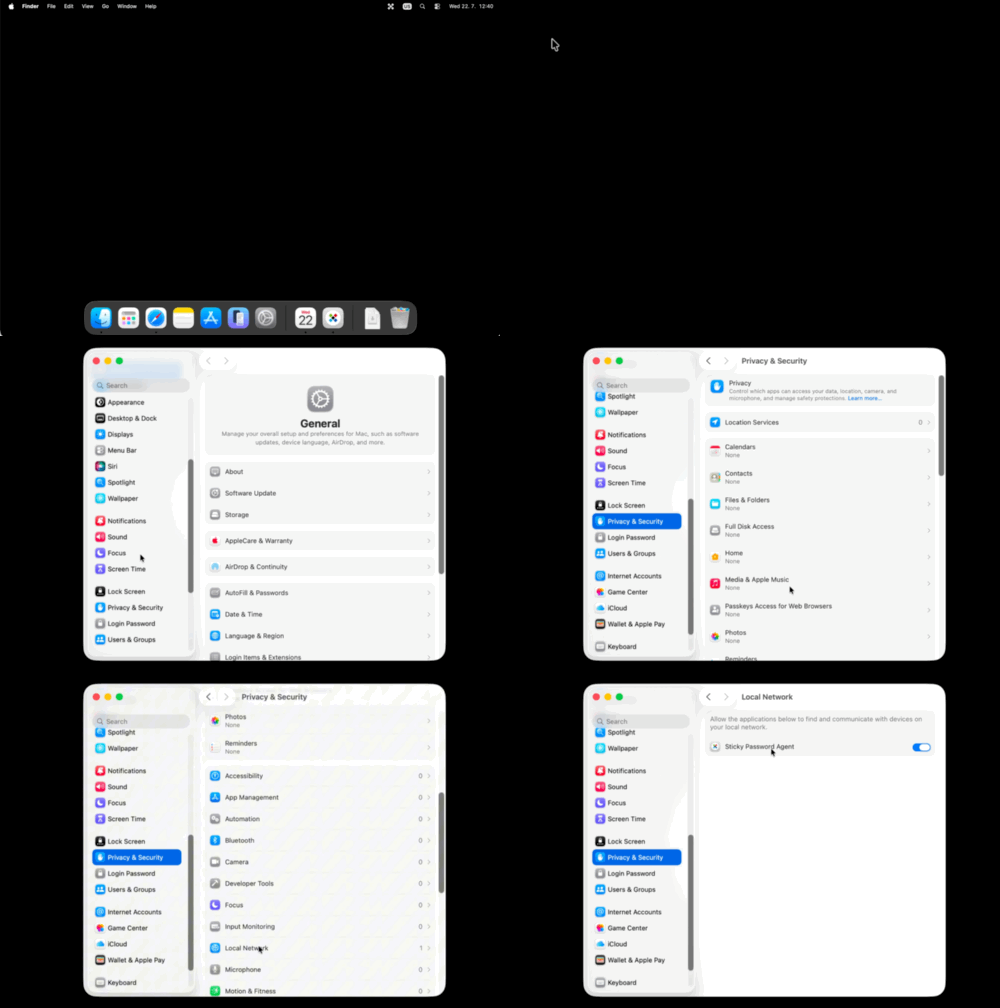
If Sticky Password is not listed, open the app and start Local Sync again. When macOS asks whether Sticky Password may find devices on your local network, click Allow.
Allow Sticky Password through the macOS firewall
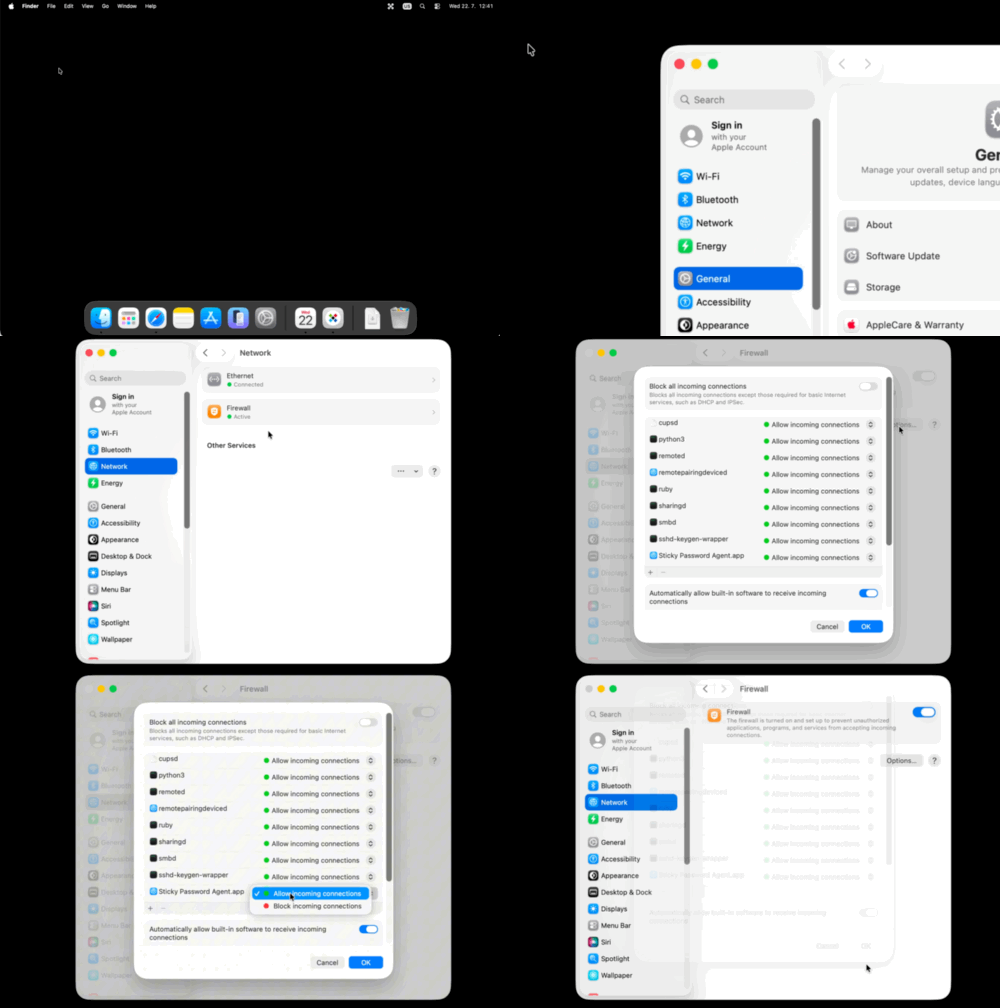
You do not need to turn off the firewall. Instead, allow incoming connections for Sticky Password:
- Choose the Apple menu > System Settings.
- Click Network in the sidebar, then click Firewall.
-
If the firewall is on, click Options.
If the firewall is off, it is not blocking Local Sync. Skip the rest of this section.
- Make sure Block all incoming connections is turned off.
- Find Sticky Password in the list and set it to Allow incoming connections.
- If Sticky Password is not in the list, click the Add (+) button, open the Applications folder, select Sticky Password, and click Add. Then allow incoming connections for it.
- Click OK, quit and reopen Sticky Password, and try Local Sync again.
If macOS displays a message asking whether Sticky Password should accept incoming network connections, click Allow.
On older versions of macOS: choose Apple menu > System Preferences > Security & Privacy > Firewall > Firewall Options, then allow incoming connections for Sticky Password.
Try a different network
This is an important troubleshooting step: if another trusted network is available, connect both devices to it and try Local Sync again.
If Local Sync works on the other network, your original network or router is probably preventing connected devices from communicating. Check the router for settings such as guest network isolation, client isolation, or AP isolation, or ask the network administrator or router provider for help.
Check other security and network software
A VPN, antivirus app, third-party firewall, or network security app can also block communication between your devices.
- Pause your VPN, then try Local Sync again.
- In your security app, add Sticky Password to the list of trusted or allowed applications.
- Allow Sticky Password to communicate with devices on your local or private network.
- If this is a work, school, hotel, or public network, ask the network administrator whether communication between devices is blocked.
Do not leave your firewall or antivirus protection turned off. If temporarily pausing a security app makes Local Sync work, turn the protection back on and create an allow rule for Sticky Password.
If Local Sync still does not work
- Restart Sticky Password on both devices.
- Restart both devices.
- Restart your Wi‑Fi router, if you can.
- Try Local Sync again from each device.
If the devices still cannot find each other, contact Sticky Password Support and include your macOS version, the other device and its operating system, and the name of any firewall, antivirus, or VPN app you use.
How can we improve the answer?
Send feedbackThank you!
Thank you! We will do our best to make this answer better.
An error has occurred. We apologize for the inconvenience. Please try again.