
When autofill doesn't work—use Action Button
On some Android devices, the standard autofill function may not work properly due to the specific way certain websites or apps are built. In such cases, you can use the Action Button to manually copy and paste your credentials into the login fields. In this FAQ, we’ll show you how to activate and use the Action Button step by step.
How to activate the Action button
The Action Button is disabled by default. If you’d like to use it, you’ll first need to activate it by following a few simple steps:
-
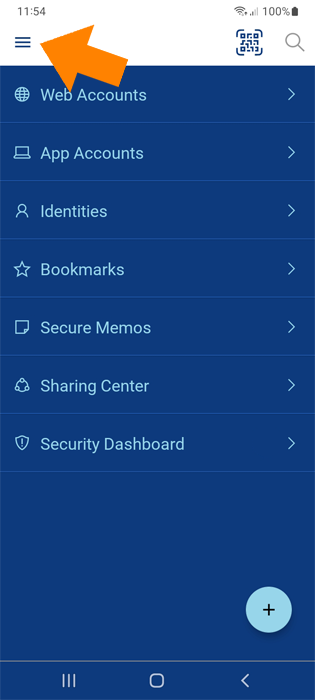
Unlock the Sticky Password app and tap the Menu icon.
-
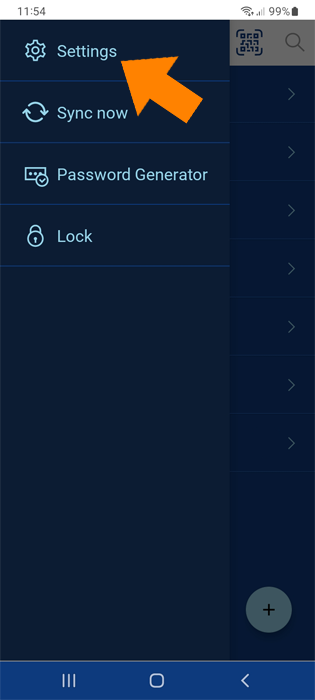
Tap Settings.
-
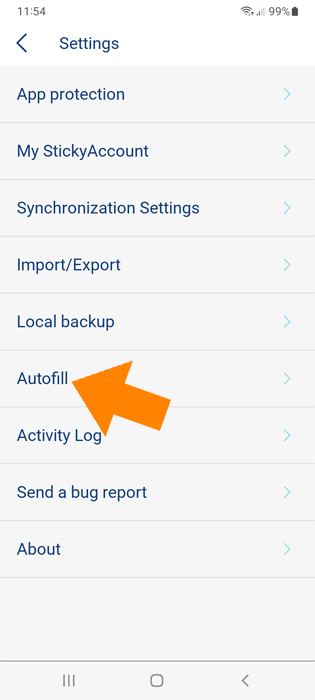
Tap Autofill.
-
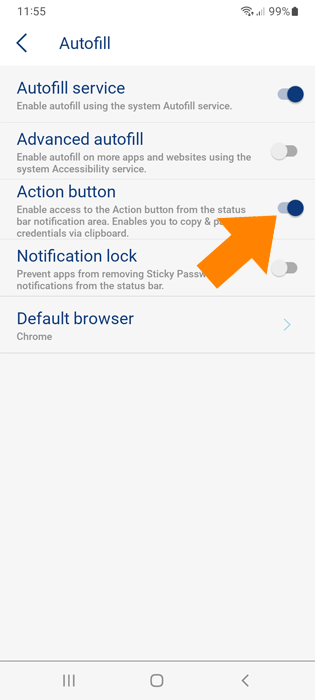
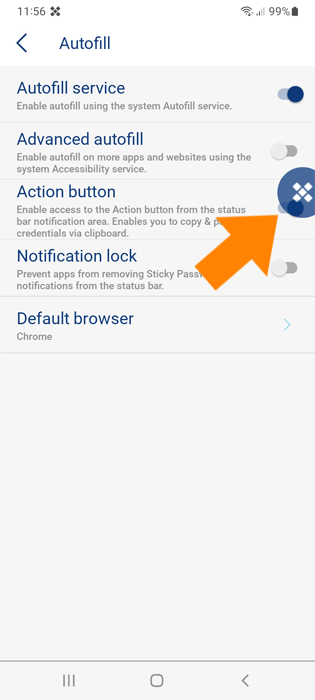
Enable the Action Button.
-
Depending on your device settings, you may be prompted to allow Sticky Password to display over other apps (also known as "Appear on top" permission).
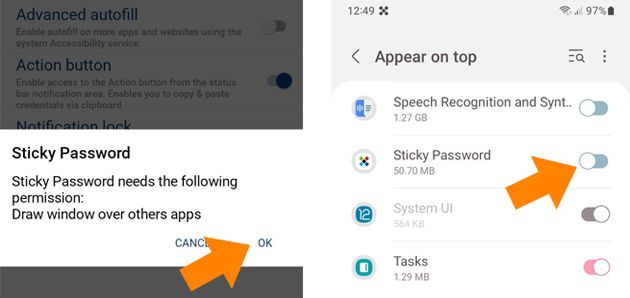
The Action Button is now activated and ready to use.
How to use the Action button
-
Go to the website or application you want to log in to.
-
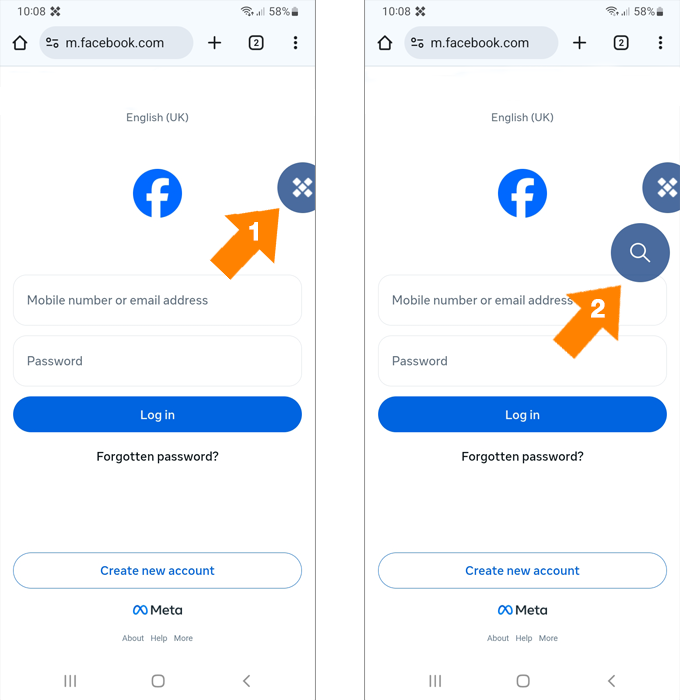
Tap the Action Button, then tap the magnifying glass icon that appears beside it.
-
A list of your saved accounts will be displayed. Select the Login credentials you want to use for signing in.
-
Tap the Login icon to copy your login to the clipboard.
-
Now you can paste it in the appropriate (login) field, long tap the first input field and tap Paste.
-
Tap the Password icon to copy your password to the clipboard. Then paste it in the password field, long tap the second (password) input field and tap PASTE.
-
That’s it! All that’s left to do is click Log In to access your web account.


From within a browser
You can use the Action button with your preferred browser at any time.
-
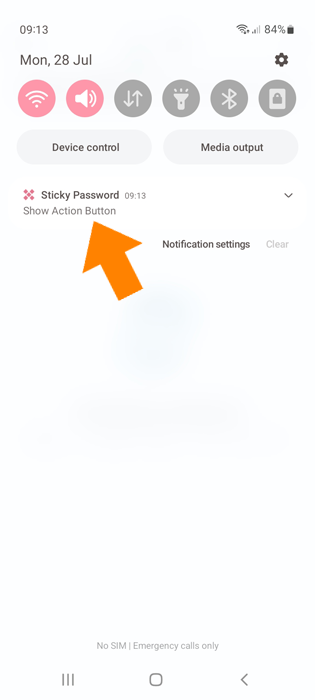
Simply run a browser and swipe down to reveal the notification bar. The Sticky Password action button lives here! Tap Show Action Button.
-
Unlock Sticky Password with your Master Password.
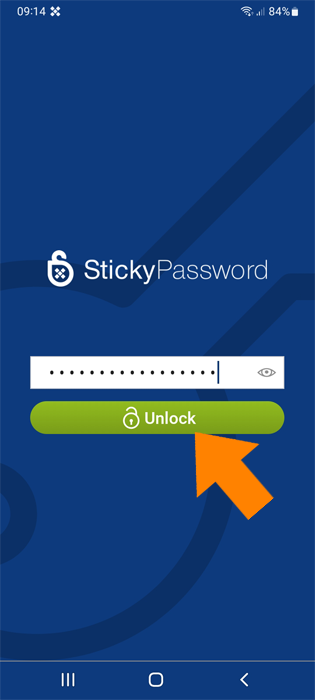
The Sticky Password Action button appears and is ready for use!
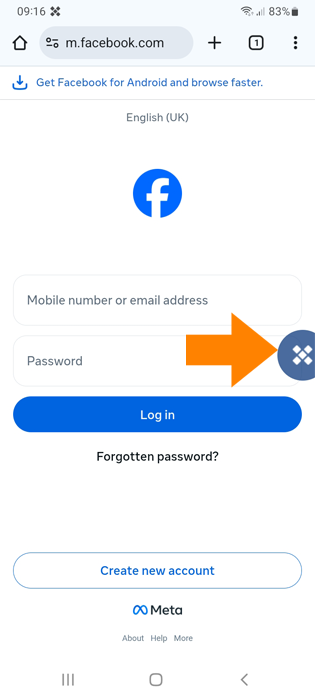
That’s everything you need to know to start using the Action Button as a reliable autofill alternative.
How can we improve the answer?
Send feedbackThank you!
Thank you! We will do our best to make this answer better.
An error has occurred. We apologize for the inconvenience. Please try again.